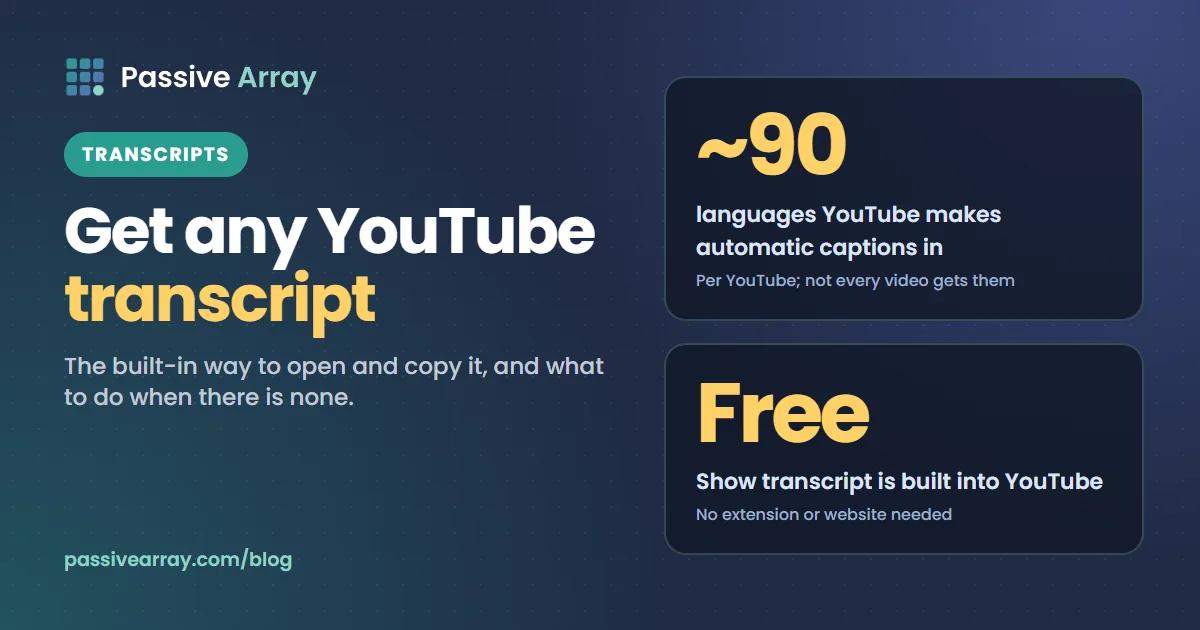
Every YouTube video that has captions also has a transcript, and YouTube shows it for free. On a computer, open the video, expand the description and click Show transcript. The full text appears beside the video with a timestamp on each line, and clicking a line jumps the video to that moment. No extension or website needed.
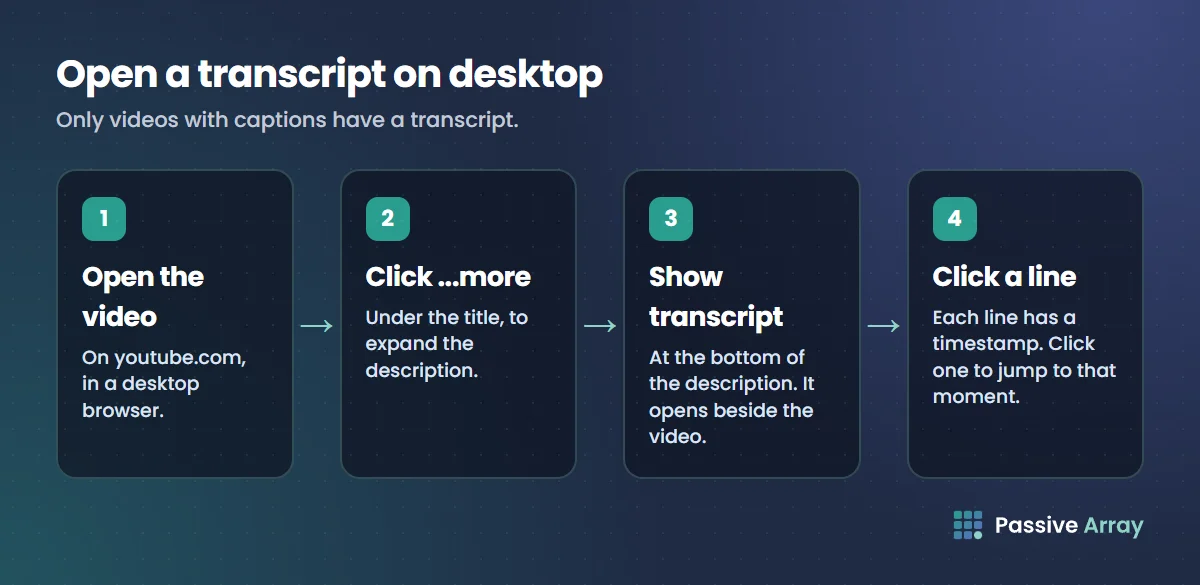
Open a transcript on desktop
- Open the video on youtube.com.
- Click ...more under the title to expand the description.
- Scroll to the bottom of the description and click Show transcript.
- The transcript opens in a panel next to the video. It scrolls along as the video plays.
- Click any line to jump to that point in the video.
If there is a language menu at the bottom of the panel, you can switch between the captions available, such as an uploaded English track and an auto-generated one.
Copy the text
Select the text in the transcript panel with your mouse, from the first line to the last, and copy it. Each line comes with its timestamp. To get clean text without times, paste into a document and remove the timestamp lines, or paste into a spreadsheet and delete the time column.
On the phone
The YouTube app also shows transcripts for many videos: open the description and look for a Transcript section. Where it appears and what it is called has changed between app versions, so if you cannot find it, open the video in a desktop browser instead.
Why some videos have no transcript
A transcript only exists when the video has captions. YouTube creates automatic captions in roughly 90 languages, but not every video gets them. According to YouTube, automatic captions can fail when:
- the audio is poor, has heavy background noise or several people talking at once,
- the video is very long,
- there is a long silence at the start,
- the language is not one YouTube's speech recognition supports.
Creators can also turn captions off or remove them. If Show transcript is missing, the video has no captions, and there is nothing to show.
Download the captions of your own video
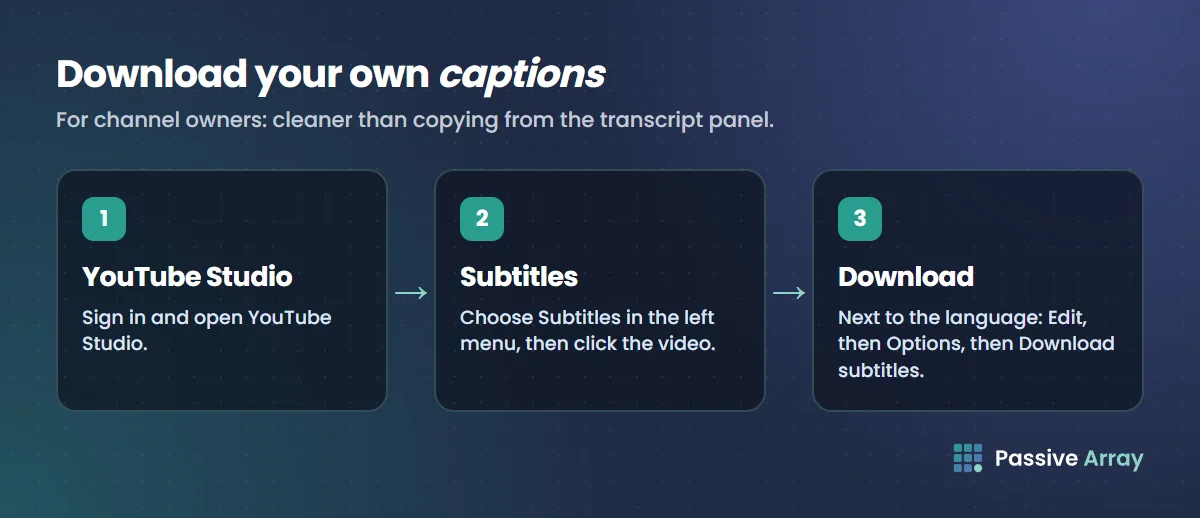
If you own the channel, you can download the caption file itself, which is cleaner than copying from the panel:
- Open YouTube Studio.
- Choose Subtitles in the left menu.
- Click the video.
- Next to the language you want, click Edit, then Options, then Download subtitles.
You get a caption file with timings. Open it in any text editor, or upload it to a subtitle tool to convert it to plain text.
What to do with a transcript
- Write your description. A transcript is the fastest raw material for a description and chapters. The description generator turns your notes into a structured description with a timestamps block.
- Make chapters and timestamp links. Find the moment each section starts and list it in the description, or share a link that starts at that line with the timestamp link generator. How to link to a time in a YouTube video covers the chapter rules.
- Repurpose a video. Turn a transcript into a blog post, newsletter or social thread.
- Plan the next video. Read your best video's transcript to see how its structure held attention, then use the script outline generator to build the next one the same way.
- Study and take notes. Search the transcript with Ctrl+F (Cmd+F on a Mac) to find the part of a lecture or tutorial you need.
Respect the creator
A transcript is the creator's words. Quoting a few lines with a link is fine. Republishing a whole transcript as your own article is copying, and can break copyright law and YouTube's terms. When you use someone's transcript, credit them and link to the video.