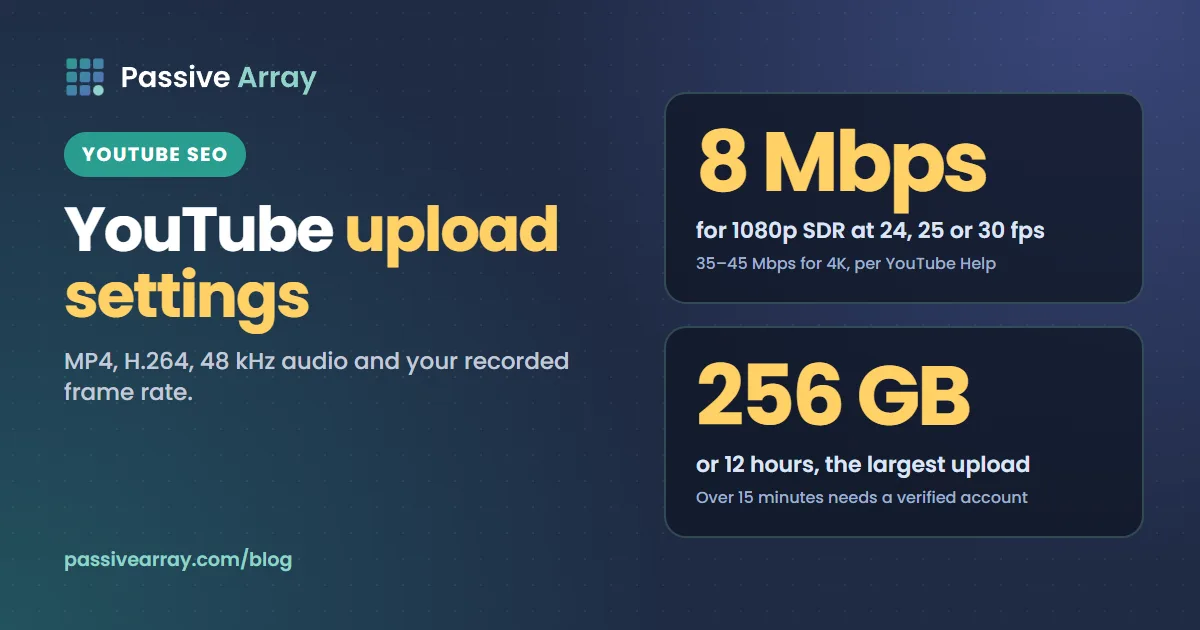
YouTube's recommended upload settings are an MP4 container, H.264 video (progressive, High Profile, closed GOP, variable bitrate, 4:2:0), AAC-LC, Opus or Eclipsa Audio at 48 kHz, and the same frame rate you recorded in. For SDR uploads YouTube Help suggests 8 Mbps for 1080p and 35–45 Mbps for 4K at 24, 25 or 30 fps, with higher figures for 48 to 60 fps and for HDR. The largest upload is 256 GB or 12 hours, whichever is less, and videos over 15 minutes need a verified account.
This guide gives YouTube Help's full encoding recommendations with the SDR and HDR bitrate tables, resolutions and colour space, the size and length limits, processing, and upload defaults in YouTube Studio. Once the file is ready, the title matters more: the free title analyzer scores a title out of 100 on length, keyword position and click appeal, with every check shown separately.
The settings at a glance
| Setting | YouTube Help's recommendation |
|---|---|
| Container | MP4, no edit lists, moov atom at the front (Fast Start) |
| Audio codec | AAC-LC, Opus or Eclipsa Audio |
| Audio channels | Stereo, Stereo + 5.1, or Stereo + Eclipsa Audio |
| Sample rate | 48 kHz |
| Video codec | H.264 |
| Frame rate | The same frame rate it was recorded in |
| Colour space (SDR) | BT.709 |
| Aspect ratio | 16:9 is standard on a computer; other ratios are adapted to |
| Maximum upload | 256 GB or 12 hours, whichever is less |
One oddity: YouTube Help's encoding page currently opens with "These features are only available to partners who use YouTube Studio Content Manager." The rest reads as general advice ("Below are recommended upload encoding settings for your videos on YouTube"), and none of it is required for an ordinary upload. Our reading: these settings suit anyone.
Container: MP4
YouTube Help recommends MP4 with "No Edit Lists (or the video might not get processed correctly)" and the "moov atom at the front of the file (Fast Start)". In many editors the second is a checkbox called Fast Start or web optimised.
Audio settings
The codec, channels and 48 kHz sample rate are in the table above. The recommended audio bitrates:
| Audio | Bitrate |
|---|---|
| Mono | 128 kbps |
| Stereo | 384 kbps |
| 5.1 | 512 kbps |
| Eclipsa Audio | 128 kbps per channel |
YouTube Help adds that "Audio playback bitrate is not related to video resolution."
Video codec: H.264
YouTube Help lists these H.264 settings:
- "Progressive scan (no interlacing)"
- "High Profile"
- "2 consecutive B frames"
- "Closed GOP. GOP of half the frame rate."
- "CABAC"
- "Variable bitrate. No bitrate limit is required, though we offer recommended bit rates below for reference"
- "Chroma subsampling: 4:2:0"
"GOP of half the frame rate" means a keyframe every half second: 15 frames at 30 fps, 30 at 60 fps (our arithmetic).
Frame rate
"Content should be encoded and uploaded in the same frame rate it was recorded." YouTube Help lists common rates as "24, 25, 30, 48, 50, 60 frames per second (other frame rates are also acceptable)."
Interlaced footage should be deinterlaced first. YouTube's own example: "1080i60 content should be deinterlaced to 1080p30."
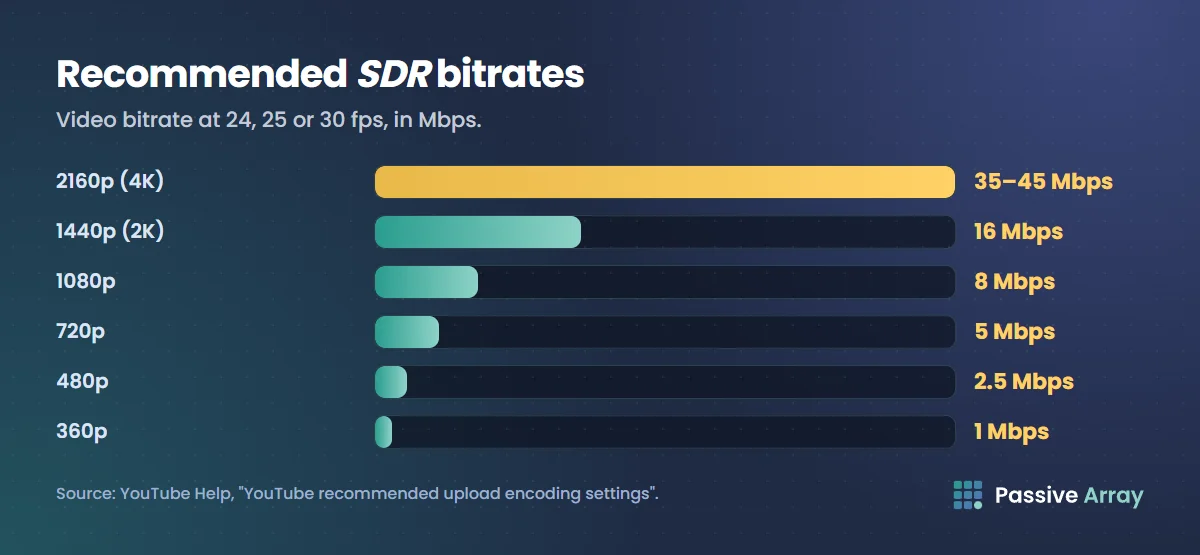
Recommended bitrates for SDR uploads
These are recommendations, not limits. YouTube Help adds: "To view new 4K uploads in 4K, use a browser or device that supports VP9."
| Resolution | Standard frame rate (24, 25, 30) | High frame rate (48, 50, 60) |
|---|---|---|
| 8K | 80 - 160 Mbps | 120 to 240 Mbps |
| 2160p (4K) | 35–45 Mbps | 53–68 Mbps |
| 1440p (2K) | 16 Mbps | 24 Mbps |
| 1080p | 8 Mbps | 12 Mbps |
| 720p | 5 Mbps | 7.5 Mbps |
| 480p | 2.5 Mbps | 4 Mbps |
| 360p | 1 Mbps | 1.5 Mbps |
Recommended bitrates for HDR uploads
| Resolution | Standard frame rate (24, 25, 30) | High frame rate (48, 50, 60) |
|---|---|---|
| 8K | 100 - 200 Mbps | 150 to 300 Mbps |
| 2160p (4K) | 44–56 Mbps | 66–85 Mbps |
| 1440p (2K) | 20 Mbps | 30 Mbps |
| 1080p | 10 Mbps | 15 Mbps |
| 720p | 6.5 Mbps | 9.5 Mbps |
| 480p | Not supported | Not supported |
| 360p | Not supported | Not supported |
HDR only makes sense if the video was graded in HDR (see below).
Best upload settings for YouTube 4K
From YouTube's own figures, a 4K SDR upload is 3840 x 2160, MP4, H.264 High Profile at your recorded frame rate, 35–45 Mbps at 24 to 30 fps or 53–68 Mbps at 48 to 60 fps, AAC-LC or Opus at 48 kHz and BT.709. For 4K HDR, use 44–56 Mbps or 66–85 Mbps and the HDR requirements below.
Resolution and aspect ratio
For the default 16:9 aspect ratio, YouTube Help says to encode at these resolutions:
| Name | Resolution |
|---|---|
| 4320p (8K) | 7680 x 4320 |
| 2160p (4K) | 3840 x 2160 |
| 1440p (2K) | 2560 x 1440 |
| 1080p (HD) | 1920 x 1080 |
| 720p (HD) | 1280 x 720 |
| 480p (SD) | 854 x 480 |
| 360p (SD) | 640 x 360 |
| 240p (SD) | 426 x 240 |
YouTube Help also notes: "In 2022, we started removing support for playback at resolutions between 4K and 8K. For example, we may no longer support playback at 5K."
"The standard aspect ratio for YouTube on a computer is 16:9." Other shapes are fine: the player "will automatically change to the ideal size to match your video and the viewer's device." What YouTube asks you not to do is add the bars yourself: "For best results, avoid adding padding or black bars directly to your video."
Vertical and square videos have one more rule. In the YouTube mobile apps, YouTube Help says: "If your video is 3 minutes or less and has a square or vertical aspect ratio, it will be uploaded as a Short." How long can YouTube Shorts be explains what that changes.
Colour space
For SDR uploads, "YouTube recommends BT.709 as the standard color space" for transfer characteristics, primaries and matrix (H.273 value 1). If your file does not say, YouTube assumes BT.709. Also from that page:
- "YouTube converts full color range to limited color range."
- "YouTube does not recommend the RGB color matrix on uploads", and "sRGB TRC will convert to BT.709 TRC."
HDR uploads
YouTube's HDR page requires 720p, 1080p, 1440p or 2160p; a frame rate of 23.976, 24, 25, 29.97, 30, 48, 50, 59.94 or 60; 10 or 12 bit colour; Rec. 2020 primaries and Rec. 2020 non-constant luminance matrix; and PQ or HLG (Rec. 2100).
Tested containers are MOV/QuickTime, MP4 and MKV, and the recommended codecs are VP9 Profile 2, AV1 and HEVC/H.265. Videos "must have HDR metadata in the codec or container". YouTube warns against mastering in DCI P3 and tagging the result as Rec. 2020, which gives "an oversaturated look with shifted hues." Viewers on non-HDR devices see an automatic SDR version.
Supported file formats
If you get an "invalid file format" error, YouTube Help lists these accepted formats: .MOV, .MPEG-1, .MPEG-2, .MPEG4, .MP4, .MPG, .AVI, .WMV, .MPEGPS, .FLV, 3GPP, WebM, DNxHR, ProRes, CineForm and HEVC (H.265).
Audio-only files cannot become a video: "Audio files, like MP3, WAV, or PCM files, can't be uploaded to create a YouTube video." Add an image in a video editor first.
YouTube video size and length limits
| Limit | YouTube Help |
|---|---|
| Default length | "up to 15 minutes long" |
| Longer than 15 minutes | Verified accounts only |
| Maximum upload | "256 GB or 12 hours, whichever is less" |
| Videos per upload in Studio | Up to 15 at a time |
How to upload videos longer than 15 minutes
- On a computer, go to youtube.com/verify.
- Follow the steps to verify your Google Account, with a code by text message or an automated voice call.
- If a long video was uploaded before you verified, upload it again. YouTube Help says the earlier upload will not start playing on its own.
On Android and iPhone, verification starts when you select a video longer than 15 minutes in the upload flow. To check your status, open Feature eligibility, where "Enabled" shows for features that require phone verification. If long uploads stopped working, YouTube Help says to "check your account for copyright claims and strikes." For a file over 256 GB, it suggests compressing with H.264. There is also a daily upload limit per channel; the upload page does not give the number.
What happens after you upload: SD first, HD and 4K later
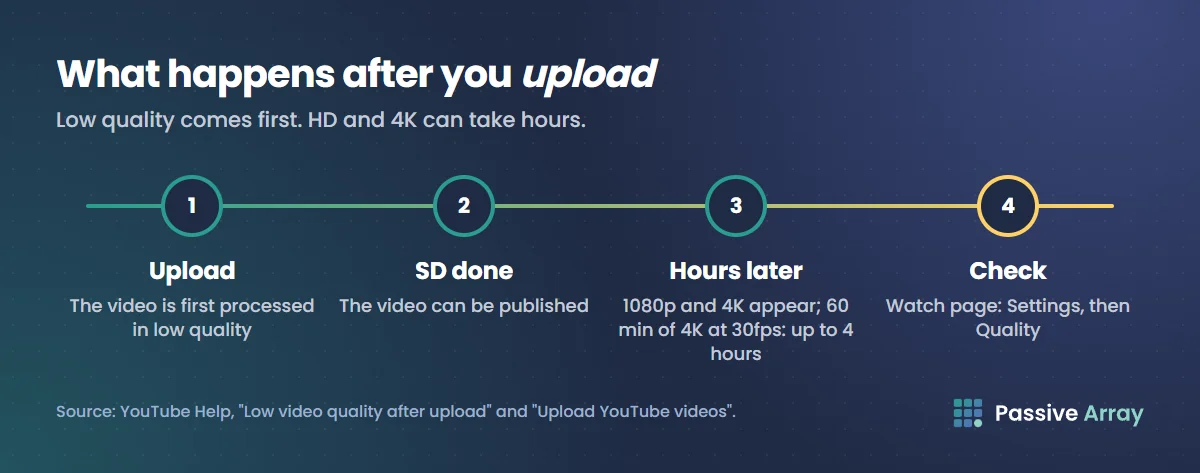
YouTube processes in stages, and the high resolutions come last.
- "When you upload a video, it will initially be processed in low quality." That lets the upload finish faster.
- "Your video can be published once SD processing is complete." The upload window shows estimated processing times for SD, HD and 4K.
- Higher qualities "can take more time to process", and the video "may seem to be missing higher qualities for several hours."
- Time depends on format, length, frame rate, quality and traffic. YouTube's example: "A 4K video with a frame rate of 30fps that is 60 minutes long can take up to 4 hours to finish high-resolution processing." At 60 fps it takes longer.
- "For optimal processing time, verify your account."
To see whether HD or 4K is ready, open the watch page and select Settings, then Quality. If the higher options are missing, processing is still running. If a launch time matters, upload hours early and schedule the publish time (our advice, not a YouTube rule).
Set upload defaults in YouTube Studio
Upload defaults fill in the same settings on every new upload: "privacy setting, category, title, tags, language, and more."
- Sign in to YouTube Studio.
- From the left menu, select Settings.
- Select Upload defaults.
- Choose your defaults in the Basic info and Advanced settings tabs.
- Select Save.
The catch: "Default upload settings only affect videos uploaded through your browser on youtube.com/upload. If you upload videos through mobile or video editor, they won't respect your default settings." Partner Program members can also set an ad format default and a monetization default here.
A default description is the most useful one. YouTube description templates suggests what to put in it, and the description generator drafts a full description with a hook, timestamps, links and hashtags. For default tags, note that YouTube's upload page says tags "play a minimal role in your video's discovery"; do YouTube tags still matter explains when they help, and the tag generator builds a copy-ready list.
Export checklist
- MP4 with Fast Start, H.264 High Profile, variable bitrate, at your recorded frame rate.
- Bitrate near YouTube's table for your resolution; AAC-LC or Opus at 48 kHz.
- BT.709 for SDR, HDR only if graded in HDR, and no added black bars.
- Under 256 GB and 12 hours, with a verified account if over 15 minutes.
- Uploaded early enough for HD and 4K processing to finish.
Sources
- YouTube Help: YouTube recommended upload encoding settings (container, codecs, frame rate, SDR and HDR bitrate tables, audio bitrates, colour space)
- YouTube Help: Video resolution & aspect ratios (resolutions, padding, 4K to 8K playback)
- YouTube Help: Upload High Dynamic Range (HDR) videos (HDR requirements, containers, codecs, metadata)
- YouTube Help: Supported YouTube file formats (accepted formats, audio files)
- YouTube Help: Upload videos longer than 15 minutes (length limit, verification, 256 GB and 12 hour maximum)
- YouTube Help: Low video quality after upload (processing order and time)
- YouTube Help: Upload YouTube videos (15 videos at a time, SD publishing, Shorts rule in the apps, tags), read in its computer, Android and iPhone versions
- YouTube Help: Set default upload settings (upload defaults)
Frequently asked questions
What are YouTube's recommended upload settings?
MP4, H.264 (progressive, High Profile, closed GOP, variable bitrate), AAC-LC, Opus or Eclipsa Audio at 48 kHz, your recorded frame rate, and BT.709 colour for SDR. Recommended bitrates run from 1 Mbps for 360p to 35–45 Mbps for 4K at standard frame rates.
What is YouTube's recommended bitrate for 1080p?
For SDR uploads, 8 Mbps at 24, 25 or 30 fps and 12 Mbps at 48, 50 or 60 fps. For HDR, 10 Mbps and 15 Mbps. YouTube Help says no bitrate limit is required, so these are reference figures, not caps.
What are the best upload settings for YouTube 4K?
3840 x 2160, MP4, H.264 High Profile at your recorded frame rate, 35–45 Mbps at 24 to 30 fps or 53–68 Mbps at 48 to 60 fps in SDR, with AAC-LC or Opus at 48 kHz. The 4K version appears hours after upload, because high resolutions are processed last.
What is the maximum video size you can upload to YouTube?
256 GB or 12 hours, whichever is less. Videos longer than 15 minutes need a verified account, which you set up at youtube.com/verify with a text message or voice call code.
What frame rate should I upload to YouTube?
The frame rate you recorded in. YouTube Help lists 24, 25, 30, 48, 50 and 60 fps as common and accepts others. Deinterlace interlaced footage first, for example 1080i60 to 1080p30.
What resolution should I upload to YouTube?
The highest you recorded in, at a standard 16:9 size such as 1920 x 1080 or 3840 x 2160. Do not add black bars to vertical or square video; the player adapts.
Why is my YouTube video not in HD after uploading?
YouTube processes a low-quality version first, then 1080p and 4K, which can take several hours; a 60-minute 4K video at 30 fps can take up to 4 hours. Check Settings, then Quality, on the watch page.