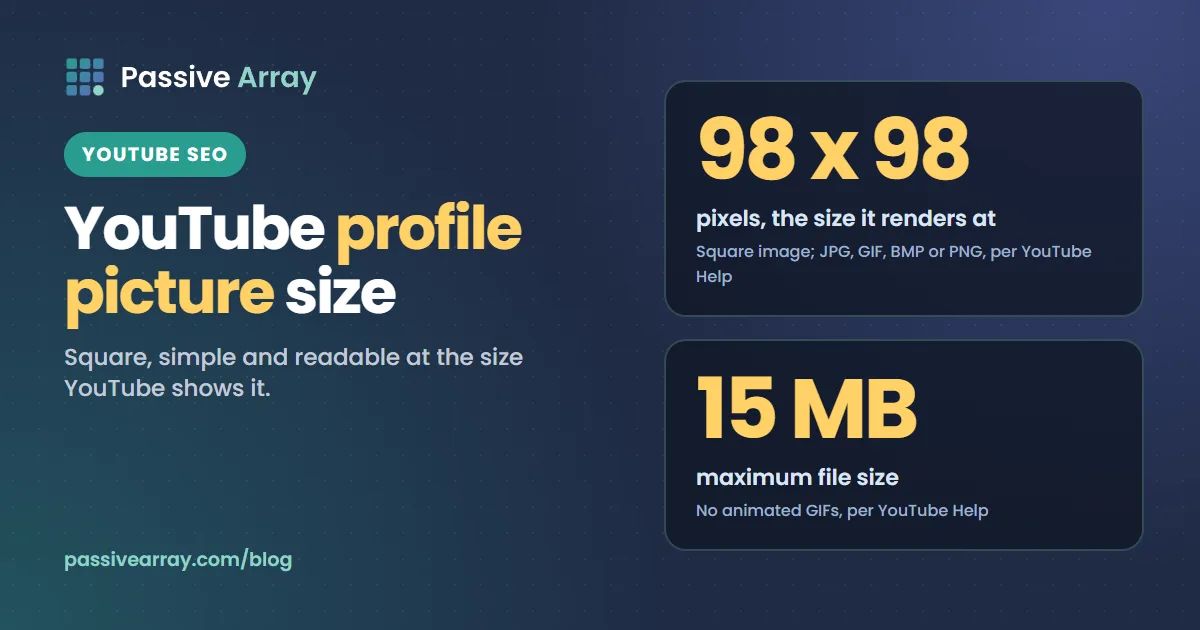
YouTube Help says your profile picture is an "Image that renders at 98 X 98 px". The file must be a JPG, GIF, BMP or PNG (no animated GIFs) and should not exceed 15 MB. YouTube's creator tips add that "It's best to upload a square or round image," and the crop tool in YouTube Studio is a crop square, so the ratio to work with is 1:1. YouTube Help does not publish a recommended upload size beyond that, so upload a square image larger than 98 x 98 and let YouTube scale it down.
This guide sets out exactly what YouTube Help says (and what it does not), where your profile picture appears, how to change it in YouTube Studio and in the mobile apps, how it relates to your Google Account picture, and how to design one that still reads at 98 pixels. If you are still settling on the channel name that goes next to it, the free channel name generator gives twenty ideas in the style you pick and flags names that are too long to read on mobile.
YouTube profile picture size: the rules
These are the profile picture guidelines on YouTube Help's "Manage your channel branding" page. The computer, Android and iPhone versions of the page give the same three rules.
| Setting | What YouTube Help says |
|---|---|
| Display size | "Image that renders at 98 X 98 px" |
| File types | "JPG, GIF, BMP, or PNG file (no animated GIFs)" |
| File size | "Image size should not exceed 15 MB" |
| Shape | "It's best to upload a square or round image" (creator tips page) |
| Content | Must follow the Community Guidelines |
What YouTube Help does not say
The current Help pages give no minimum upload size and no recommended upload size for the profile picture. You will see 800 x 800 pixels quoted in many guides. We could not find that number on the current YouTube Help pages, so treat it as a common convention, not a YouTube rule.
What follows from the rules that are published, as our reading:
- 98 x 98 is the display size, not a maximum. "Renders at" describes how the image is shown. A larger square image gives the crop tool room to work and is scaled down rather than up.
- Square is the shape to design for. The crop tool YouTube Help describes is a "crop square", and the tips page recommends a square or round image. A wide image will lose its sides.
- Static only. An animated GIF is not accepted. A still GIF is.
Where your profile picture appears
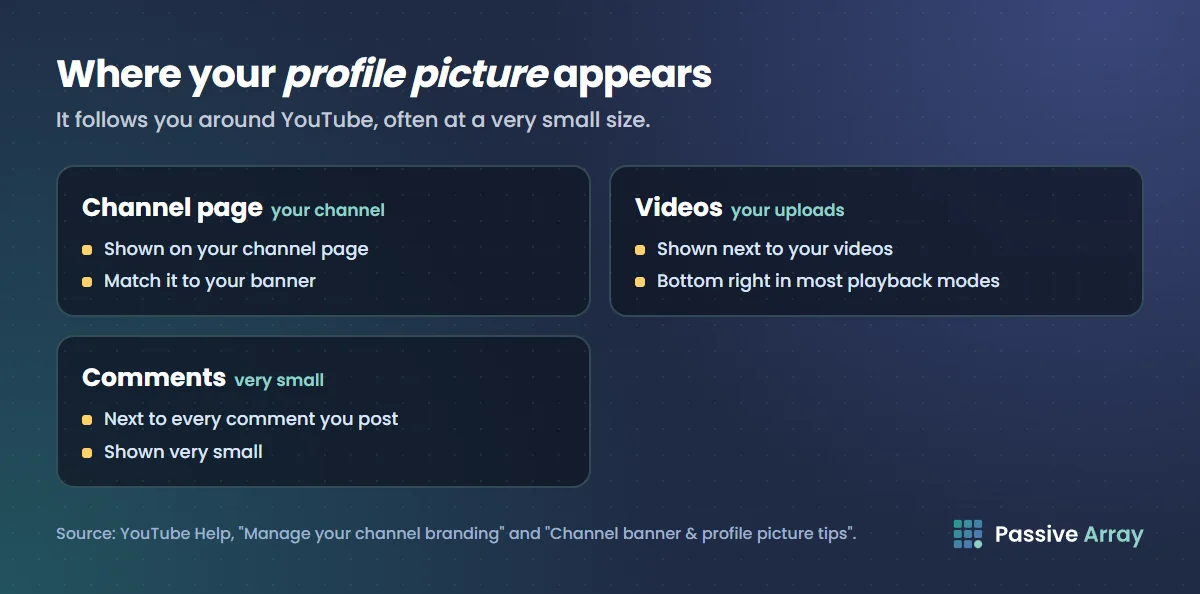
The picture does far more work than the banner, because it follows you around YouTube. YouTube Help describes it as "the image shown to viewers on your channel, videos, and publicly attributable actions across YouTube." The creator tips page lists the places in plainer terms: it "appears in many places—on your channel page, when you comment, and on the bottom right of videos in most playback modes."
| Where | Source |
|---|---|
| Your channel page | YouTube Help, branding page and creator tips |
| Next to your videos | YouTube Help, branding page |
| Next to your comments | Creator tips: "when you comment" |
| The bottom right of your videos, in most playback modes | Creator tips |
| Other "publicly attributable actions" | YouTube Help, branding page (computer version) |
Two of those places, comments and the corner of your videos, show the picture very small. That is why the design advice later in this guide is about what survives at small sizes.
How to change your YouTube profile picture
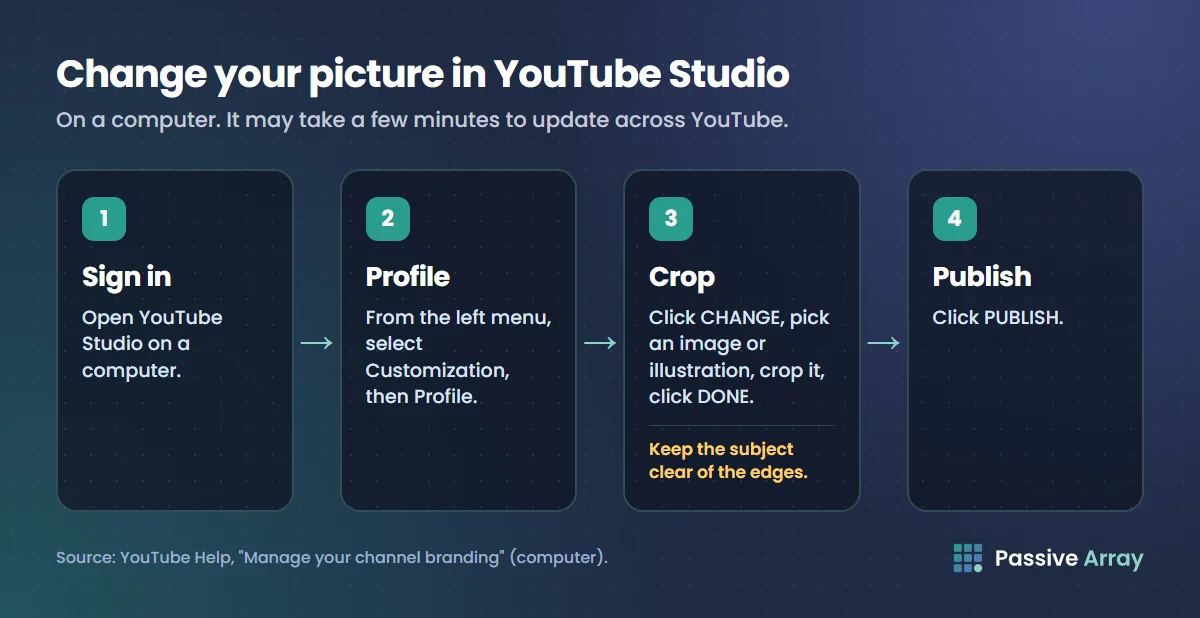
In YouTube Studio on a computer
- Sign in to YouTube Studio.
- From the left menu, select Customization, then Profile.
- Click CHANGE and select an illustration or an image from your computer. YouTube Help says you can "Change the preset colors and crop of the illustration or the size of your uploaded image", then click DONE.
- Click PUBLISH.
YouTube Help adds: "It may take a few minutes for your profile picture to update across YouTube."
If you cannot use a mouse, the crop also works with a keyboard or assistive technology. Navigate to a corner of the photo and use the arrow keys to crop, or navigate to the whole crop square and use the arrow keys to move it.
In the YouTube app on Android
- Tap your profile picture.
- Tap Your Channel.
- Tap EDIT, then tap your profile picture.
- Take a photo, choose a photo to upload, or select an illustration.
- Tap SAVE.
In the YouTube app on iPhone and iPad
- Tap your profile picture.
- Tap View Channel.
- Tap EDIT, then tap your profile picture.
- Take a photo, choose a photo to upload, or select an illustration.
- Tap Save.
The wording of step 2 differs between the Android and iPhone Help pages ("Your Channel" and "View Channel"). Use whichever your app shows.
In the YouTube Studio app
On Android and on iPhone and iPad, tap your profile picture, tap Edit profile, then tap your profile picture again. Take a photo or choose one to upload, then tap Save. The Android Help page also lists selecting an illustration in the Studio app; the iPhone page does not.
Your YouTube picture and your Google Account picture
They are separate, and changing one does not change the other. Both sides of Google's Help say so:
- YouTube Help: "If you change your YouTube channel name and picture, it will only be visible on YouTube."
- Google Account Help: "If you change your Google name or profile picture, it won't change your YouTube name or profile picture."
So if you want the same picture in Gmail, Google Chat and other Google products as on your channel, set it in both places. To change the Google Account picture on a computer, Google Account Help gives these steps:
- Sign in to your Google Account.
- Click Personal info.
- Under "Basic info," click Profile picture.
- Upload a photo from your computer or choose one of your Google Photos.
- Rotate and crop the photo, then click Next.
- At the bottom, click Save as profile picture.
Google Account Help also notes that after a change "it sometimes takes a few days to update across all Google products." If your old Google picture still shows somewhere, that delay is the usual reason. On YouTube itself, the channel picture is the one to change in YouTube Studio.
Profile picture vs banner vs watermark
Three channel images are set in the same place in YouTube Studio, and each has different rules. Mixing them up is a common cause of a blurry or rejected image.
| Image | Size rule on YouTube Help | File rule on YouTube Help |
|---|---|---|
| Profile picture | Renders at 98 x 98 px | JPG, GIF, BMP or PNG (no animated GIFs), no more than 15 MB |
| Banner | 2560 x 1440 recommended, 2048 x 1152 minimum, 16:9 | 6 MB or smaller |
| Video watermark | Minimum 150 x 150 pixels, square | Less than 1 MB |
The watermark is not your profile picture. It is a separate square image shown on your videos for the last 15 seconds, from a time you choose, or for the entire video, and YouTube Help says watermarks "aren't available on videos set as made for kids". Many channels reuse their logo for both, which is fine, but the files have different limits. The banner has its own guide: YouTube banner size.
Designing a profile picture that works at 98 pixels
YouTube's creator tips call the profile picture "your signature image or logo that represents your channel." The page's guidance is about consistency: "Consider how your profile picture and banner image are aligned and how they communicate your channel identity. Make sure these match with your branding off YouTube." Its example channel "uses a consistent color scheme across their profile picture and banner image."
The rest of this section is our design advice, not YouTube rules. None of it needs a number.
- One subject. A face or a single simple mark. Detail that looks good in a design app disappears at comment size.
- Fill the frame, then leave a margin. Keep the subject large, but away from the edges, so a square or round display does not clip it.
- Strong contrast. A light subject on a dark background, or the reverse. Check it on both YouTube's light and dark themes.
- Little or no text. A whole channel name rarely reads at 98 pixels. One letter or a short monogram can.
- Match the banner. Same colours, same mark. Viewers who see your picture in a comment should recognise it on your channel page.
- Test it small. Shrink your file to 98 x 98 on your computer and look at it from arm's length before you publish.
- Keep the original. Save the large square master file, so a later change does not start from a 98-pixel copy.
The same thinking applies to thumbnails, which are seen at small sizes too. The thumbnail tester shows a thumbnail at real feed sizes in light and dark mode, and YouTube thumbnail size covers the thumbnail side.
Brand safety: what not to use as a profile picture
Your picture must follow YouTube's Community Guidelines, and the impersonation policy names profile pictures directly. It lists as not allowed: "Impersonating an existing creator, entity, or channel by copying their profile pictures, banners, or specific color schemes." It adds that "The channel does not have to be 100% identical, as long as the intent is clear to copy the other channel," and that YouTube "also enforces trademark holder rights." If YouTube determines a channel "was established to impersonate another person or entity, the channel may be removed."
In practice, that means:
- Do not use another creator's or brand's logo, or a close copy of it, as your picture.
- Do not use a famous person's face to suggest they run or endorse your channel. The policy also covers using AI to copy someone's likeness "to make it appear as if the channel is owned or authorized by that individual."
- If you run a fan channel, the policy asks you to "state so explicitly in your channel name or handle." A picture that copies the original creator's makes that harder.
- Use images you have the right to use. Your own photo, your own logo, or artwork you made or licensed.
Our guide to YouTube channel name ideas covers the naming side of the same rules, and how to grow a YouTube channel explains why consistent branding across the channel helps new viewers recognise you.
Quick checklist
- Square image, larger than 98 x 98, with the subject centred and clear of the edges.
- JPG, PNG, BMP or a still GIF. No animated GIFs.
- 15 MB or less.
- Reads at 98 pixels, on light and dark backgrounds.
- Matches your banner and your branding off YouTube.
- Your own image, not a copy of another creator's or brand's.
- Changed in YouTube Studio for YouTube, and separately in your Google Account if you want it there too.
Sources
- YouTube Help: Manage your channel branding (profile picture guidelines, Studio and app steps, keyboard cropping, banner and watermark rules), read in its computer, Android and iPhone versions
- YouTube Help: Channel banner & profile picture tips (where the picture appears, square or round image, consistency advice)
- YouTube Help: Manage your YouTube channel's profile (channel picture changes are only visible on YouTube)
- Google Account Help: Change your Google Account picture, name & other info (Google Account picture steps, separation from YouTube, update delay)
- YouTube Help: Impersonation policy (copying profile pictures, banners and colour schemes)
Frequently asked questions
What is the YouTube profile picture size?
YouTube Help says the profile picture is an image that renders at 98 x 98 pixels. It must be a JPG, GIF, BMP or PNG file, with no animated GIFs, and should not exceed 15 MB. Help gives no recommended upload size, so upload a square image larger than 98 x 98 and crop it in YouTube Studio.
What are the YouTube profile picture dimensions in pixels?
The only pixel figure on YouTube Help is the display size, 98 x 98 pixels. The 800 x 800 figure quoted in many guides is not on the current Help pages. Any larger square image works, as long as the file is 15 MB or less.
What is the YouTube profile picture ratio?
Square, 1:1. YouTube's creator tips say it is best to upload a square or round image, and the crop tool in YouTube Studio is a crop square. A rectangular image will lose its sides when you crop it.
What is the YouTube channel icon size?
The channel icon is the profile picture, and YouTube Help says it renders at 98 x 98 pixels. Use a square JPG, GIF, BMP or PNG of 15 MB or less. It is a different image from the video watermark, which must be at least 150 x 150 pixels and under 1 MB.
How do I change my YouTube profile picture?
On a computer, sign in to YouTube Studio, select Customization and then Profile, click Change, choose an image or an illustration, adjust the crop, click Done and then Publish. In the YouTube app, tap your profile picture, open your channel, tap Edit, then tap your profile picture. It may take a few minutes to update across YouTube.
Does changing my YouTube profile picture change my Google Account picture?
No. YouTube Help says a channel picture change is only visible on YouTube, and Google Account Help says changing your Google profile picture won't change your YouTube one. Change each in its own place if you want them to match.
Why can't I upload a GIF as my YouTube profile picture?
YouTube Help accepts GIF files but not animated GIFs. Save a single frame as a still GIF, JPG or PNG under 15 MB and upload that instead.