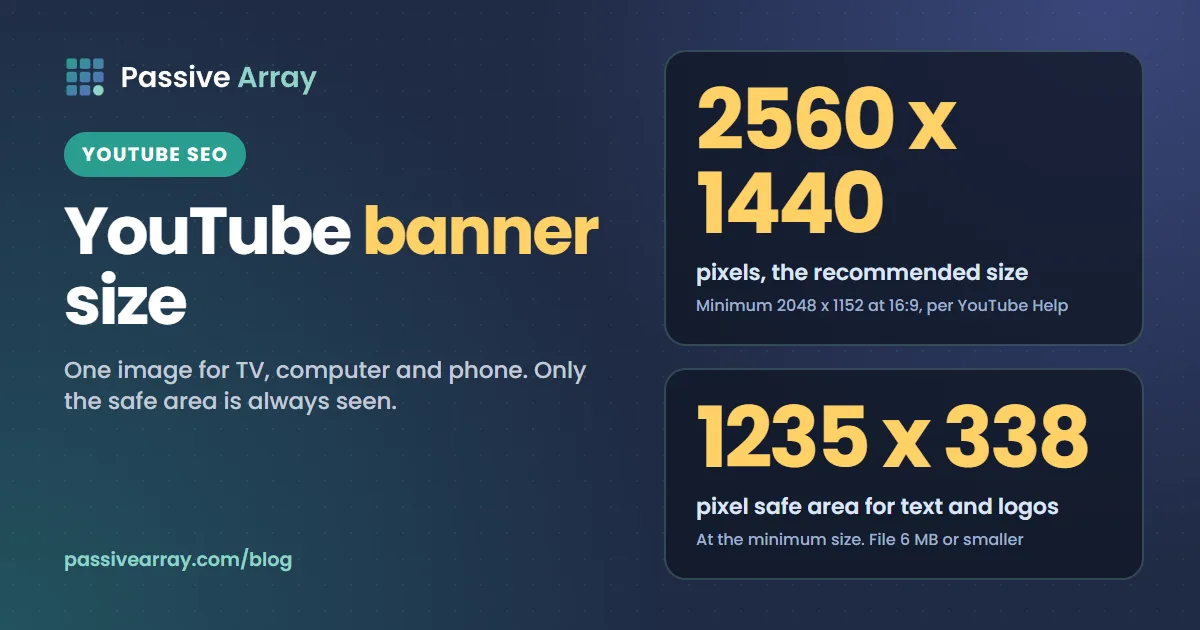
The YouTube banner size YouTube recommends is 2560 x 1440 pixels, "especially for TV". The minimum upload is 2048 x 1152 pixels at a 16:9 aspect ratio, and at that minimum the safe area for text and logos is 1235 x 338 pixels. The file must be 6 MB or smaller. YouTube uses the same banner on computers, phones and TVs, but crops it differently on each, so only the safe area is reliably seen everywhere. Everything outside it is background.
This guide gives the exact numbers from YouTube Help, explains what the safe area means in practice, walks through uploading and cropping the banner in YouTube Studio on a computer and in the mobile apps, and lists the mistakes that make a banner look broken on one device or another. When the banner is done, the thumbnail is the next piece of channel art that viewers see. The free thumbnail tester previews a thumbnail at real feed sizes, in light and dark mode, without uploading it anywhere.
YouTube banner size: the numbers
These are the banner image guidelines on YouTube Help's "Manage your channel branding" page. The page is the same for computer, Android and iPhone.
| Setting | What YouTube Help says |
|---|---|
| Recommended size | 2560 x 1440 pixels, "especially for TV" |
| Minimum size | 2048 x 1152 pixels |
| Aspect ratio | 16:9 |
| Safe area for text and logos | 1235 x 338 pixels, at the minimum size |
| File size | 6 MB or smaller |
| Extras | No shadows, borders or frames |
| File formats | Not listed in the banner guidelines |
The exact wording:
- "Minimum dimension for upload: 2048 x 1152 px with an aspect ratio of 16:9."
- "At the minimum dimension, the safe area for text and logos: 1235 x 338 px."
- "Recommended dimension (especially for TV): 2560 x 1440 px."
- "Images should accommodate the entire screen for larger devices but will get cropped on certain views and devices."
- "Do not include any additional file embellishments (e.g. shadows, borders, and frames)."
- "File size: 6 MB or smaller."
What about file formats?
YouTube Help's banner guidelines do not name file formats. The profile picture guidelines on the same page do ("JPG, GIF, BMP, or PNG file (no animated GIFs)"), but that list is written for the profile picture, so we do not present it as the banner rule. If Studio refuses a banner, re-export it as a JPG or PNG under 6 MB. That is our suggestion, not a documented rule.
Why 2560 x 1440 and not the minimum
2048 x 1152 is the smallest image YouTube accepts. YouTube's channel banner tips page goes further: "We recommend that your banner image be at least 2560x1440 px to achieve the best display on all devices." The banner guidelines give the same size as the recommended dimension "especially for TV".
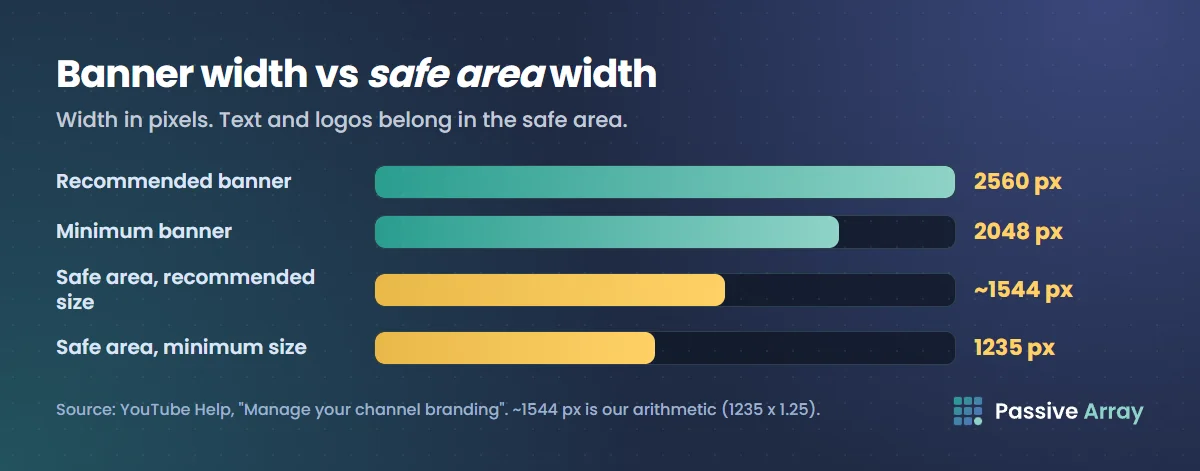
The two sizes have the same shape. 2560 x 1440 is exactly 1.25 times 2048 x 1152 in both directions, so a design made at the recommended size scales down cleanly to the minimum. That also means the safe area scales. YouTube Help only gives the safe area at the minimum size, 1235 x 338 pixels. At 2560 x 1440, the same proportion works out to about 1544 x 423 pixels. That second figure is our arithmetic (1235 and 338 multiplied by 1.25), not a number YouTube publishes.
The safe area, explained
The safe area is the part of the banner that YouTube expects to stay visible however the image is cropped. Put your channel name, logo, upload schedule or any other text there. At the minimum size it is 1235 pixels wide and 338 pixels tall, which is about 60% of the banner's width and about 29% of its height. The rest of the image, including about 70% of its height, is space that some views and devices will cut off.
Two things YouTube Help does not say, and that you should not assume it does:
- It does not say where the safe area sits. The guidelines give its size, not its position. In practice, the middle of the image is the part that every crop keeps, so a centred safe area is the cautious choice. That is our advice, not a published YouTube rule.
- It does not give per-device pixel sizes. Help says only that the image "will get cropped on certain views and devices". Sites that list exact crop sizes for desktop, tablet and mobile are not quoting the current Help page.
The practical test is the one YouTube Studio gives you: when you upload the banner on a computer, you can "select a preview and change the crop" before you publish. Check every preview and make sure nothing important is cut off in any of them.
How the banner shows on TV, desktop and mobile
YouTube Help says: "The same banner image is used across computer, mobile, and TV displays, but it shows differently depending on your device." You upload one image. You cannot upload a separate mobile banner.
| Where | What YouTube Help says | What to design for (our reading) |
|---|---|---|
| TV | Recommended dimension is 2560 x 1440 "especially for TV"; images should accommodate the entire screen for larger devices | The whole image may show, so the background should look finished edge to edge, with no blank or stretched areas |
| Computer | Same image, shown differently by device | Expect a crop; keep text and logos in the safe area |
| Mobile | Same image, shown differently by device | Expect a tighter crop; keep text large enough to read inside the safe area |
Official Artist Channels
Official Artist Channels work differently. YouTube Help says their banner image "is only used on the computer and mobile devices". The banner for TV and YouTube Music is set separately in YouTube Studio, by selecting Profile from the left menu and choosing an image next to the profile photo.
How to upload a YouTube banner and adjust the crop
In YouTube Studio on a computer
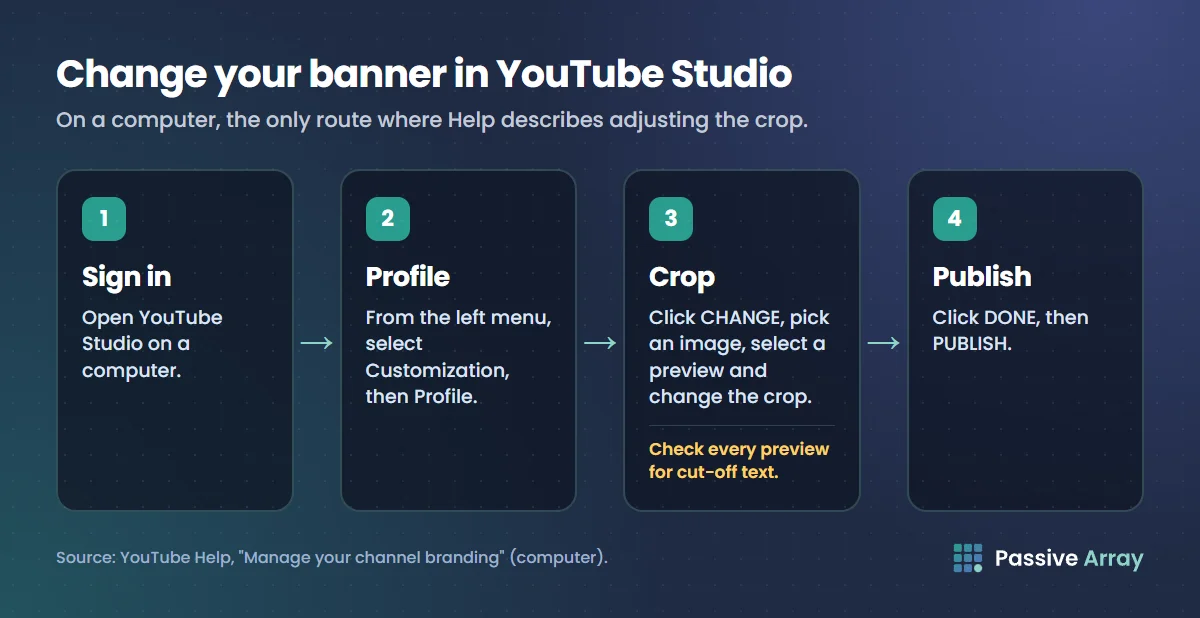
This is the only route where YouTube Help describes adjusting the crop.
- Sign in to YouTube Studio.
- From the left menu, select Customization, then Profile.
- Under the banner image, click CHANGE and select an image. To make changes, "select a preview and change the crop", then click DONE.
- Click PUBLISH.
If a guide you read sends you to a Branding tab, current YouTube Help puts the banner under Customization > Profile.
In the YouTube app on Android
- Tap your profile picture.
- Tap View channel.
- Tap EDIT, then tap your banner image on the right.
- Take a photo or choose a photo to upload.
- Tap SAVE.
In the YouTube app on iPhone and iPad
- Tap your profile picture.
- Tap Your channel.
- Tap EDIT, then tap your banner image on the right.
- Take a photo or choose a photo to upload.
- Tap Save.
In the YouTube Studio app
On iPhone and iPad, YouTube Help says: tap your profile picture, tap Edit profile, "then tap your banner image", choose a photo and tap Save. The Android version of the same Help page currently says "tap your profile picture" at that step, which looks like a copy of the profile picture instructions. If you do not see a banner option there, use the YouTube app or a computer.
The mobile steps in YouTube Help do not mention a crop preview. If your banner has text near the safe area's edges, upload it from a computer so you can check each preview.
What to put on your banner
YouTube's tips page on channel banners and profile pictures describes the banner as "a larger space for you to show what your channel is about." Its suggestions, all of them qualitative:
- Keep it consistent with the rest of your channel. The page's example channel "uses a consistent color scheme across their profile picture and banner image", and asks you to "consider how your profile picture and banner image are aligned".
- Add your upload schedule if you have one. "If you maintain a regular upload schedule, let your fans know when to come back for new videos by adding your schedule to your banner image." The same example channel shows its live streaming schedule and social media links in its banner.
- Change it when the channel changes. "Your banner image and profile picture can change with you."
- Ask your audience. YouTube suggests letting viewers "vote on your channel visuals using the Posts tab and Shorts."
- Follow the Community Guidelines. Branding elements are covered by them like everything else.
Our own suggestion, consistent with that advice: one short line that says who the channel is for and what it makes, repeated from your channel description. How to grow a YouTube channel explains why that one-sentence promise matters, and YouTube channel name ideas covers names that read well at small sizes. If you are still choosing a name, the channel name generator gives twenty ideas in the style you pick and flags the ones too long to read on mobile.
Common YouTube banner mistakes
- Uploading below 2048 x 1152. That is the minimum. Design at 2560 x 1440 instead.
- The wrong shape. The guidelines give the size "with an aspect ratio of 16:9". A banner made in another shape will be cropped in ways you did not choose.
- Text outside the safe area. Anything outside 1235 x 338 (at the minimum size) can be cut off on some devices. This is the most common reason a banner looks fine on one screen and broken on another.
- Shadows, borders and frames. YouTube Help asks you not to add them. A border drawn around the full image will be cropped on most views anyway.
- A file over 6 MB. Export as a compressed JPG, or reduce the PNG's colours, before uploading.
- Upscaling a small image. Resizing a small image up to 2048 x 1152 meets the minimum but cannot add detail that was never there. Start from a large source or design at full size.
- An out-of-date schedule. If the banner says "new videos every Friday" and the last upload was months ago, the banner works against you. Update it or leave the schedule off.
How to resize a banner
YouTube Help suggests using "your computer's image editor or an online image resizer", for example Preview on an Apple computer or Microsoft Photos on Windows. Resize to 2560 x 1440, check the result is still 16:9, and keep the exported file under 6 MB.
Banner, profile picture, watermark and thumbnail compared
Each image on your channel has its own rules. The banner is the largest and the most heavily cropped.
| Image | Size rule on YouTube Help | File rule on YouTube Help |
|---|---|---|
| Banner | 2560 x 1440 recommended, 2048 x 1152 minimum, 16:9 | 6 MB or smaller |
| Profile picture | "Image that renders at 98 X 98 px" | JPG, GIF, BMP or PNG (no animated GIFs), no more than 15 MB |
| Video watermark | Minimum 150 x 150 pixels, square | Less than 1 MB |
The profile picture has its own guide: YouTube profile picture size. Thumbnails are covered in YouTube thumbnail size. If you are setting up a new channel from scratch, YouTube upload settings covers the video side.
Sources
- YouTube Help: Manage your channel branding (banner guidelines, safe area, file size, Studio and mobile app steps, Official Artist Channels, resizing, profile picture and watermark rules), read in its computer, Android and iPhone versions
- YouTube Help: Channel banner & profile picture tips (the "at least 2560x1440 px" recommendation, schedule and consistency tips)
Frequently asked questions
What is the YouTube banner size?
YouTube recommends 2560 x 1440 pixels, especially for TV. The minimum is 2048 x 1152 pixels at a 16:9 aspect ratio, and the file must be 6 MB or smaller. Design at 2560 x 1440 and keep all text and logos in the safe area.
What is the YouTube banner safe area?
At the minimum banner size of 2048 x 1152 pixels, YouTube Help gives the safe area for text and logos as 1235 x 338 pixels. Anything outside it can be cropped on some views and devices. At 2560 x 1440 the same proportion is about 1544 x 423 pixels, which is our arithmetic rather than a published figure.
What is the YouTube channel banner size in pixels for mobile?
There is no separate mobile size. YouTube uses the same banner image on computers, mobile and TV and crops it differently on each. YouTube Help does not publish a pixel size for the mobile crop, so the safe area is the part to design for.
What is the maximum file size for a YouTube banner?
6 MB. YouTube Help's banner guidelines say "File size: 6 MB or smaller." If your file is larger, export it as a compressed JPG or reduce the image's colours before uploading.
What are the YouTube banner dimensions for TV?
YouTube Help gives 2560 x 1440 pixels as the recommended dimension "especially for TV". Larger screens show more of the image, so the whole banner, not just the safe area, should look finished at that size.
Why does my YouTube banner look cropped?
Because YouTube shows the same image differently on each device and crops it on certain views. Keep text and logos inside the safe area, use a 16:9 image of at least 2048 x 1152 pixels, and check every crop preview in YouTube Studio on a computer before you publish.
Can I change my YouTube banner on my phone?
Yes. In the YouTube app, tap your profile picture, open your channel, tap Edit, then tap the banner image and choose a photo. YouTube Help only describes the crop preview step in YouTube Studio on a computer, so use a computer if your text sits close to the safe area's edges.