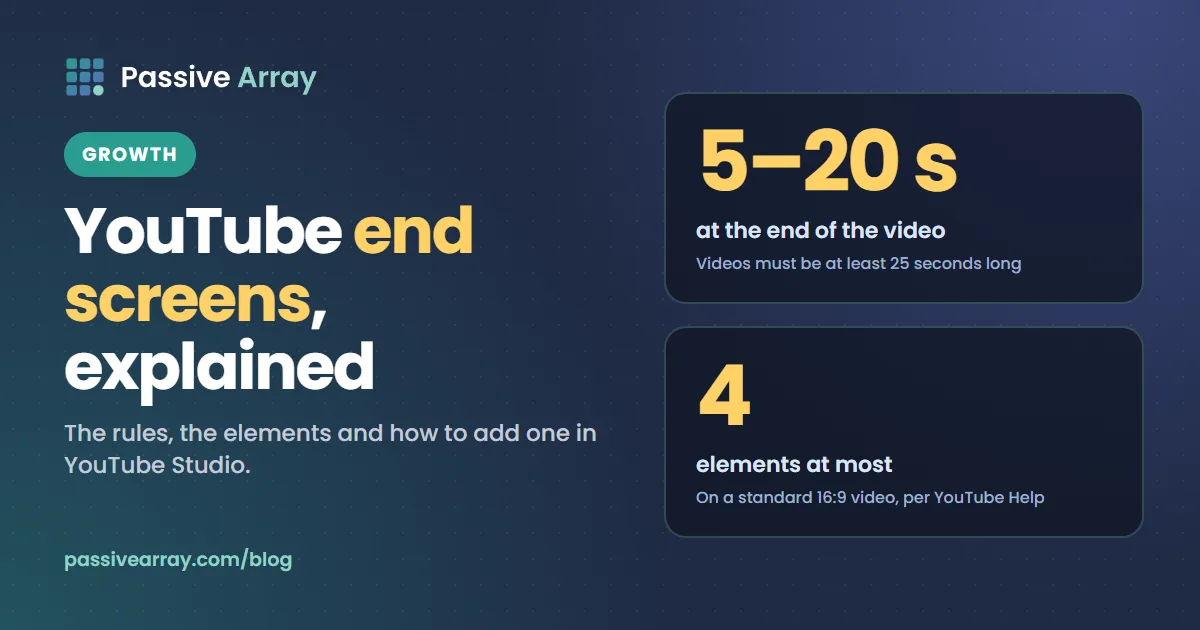
A YouTube end screen is a set of clickable elements that you add to the last 5 to 20 seconds of a video to point viewers to another video, a playlist, your subscribe button, another channel or, in the Partner Program, an external website. You can add up to four elements on a standard 16:9 video, the video has to be at least 25 seconds long, and you add them in YouTube Studio under Content > Editor > End screen. End screens are not available on videos set as made for kids.
This guide covers the rules YouTube Help states today, each element type, setup, the end screen report, design advice, why an end screen may not show, and how end screens differ from cards. Before you publish, the YouTube video SEO checker scores the parts of a video page you control, such as the title, description, tags and chapters, so the video your end screen points to is ready for the click.
The rules at a glance
Everything in this table comes from YouTube Help's page on adding end screens.
| Rule | What YouTube Help says |
|---|---|
| Where it runs | "End screens can be added to the last 5–20 seconds of a video" |
| Minimum video length | "Your video has to be at least 25 seconds long to have an end screen" |
| Number of elements | "up to four elements" on "videos with standard 16:9 aspect ratio. Other aspect ratios may have a lower limit" |
| Made for kids | "End screens aren't available for videos set as made for kids" |
| Other places they do not show | Mobile web (except iPad), the YouTube Music and YouTube Kids apps, Flash videos and 360 videos |
| Link element | Only "If you're in the YouTube Partner Program" |
| Viewer control | "Viewers have the ability to hide end screens while watching your videos" |
| Other overlays | Card teasers and video watermarks "are suppressed during the end screen" |
YouTube adds a caveat worth knowing before you test your own videos: "Your end screen may not always show, or may show differently than designed." It says this happens "as we improve end screens based on performance, viewer behavior, device, and context."
End screen elements
YouTube calls each clickable item an element. There are five types.
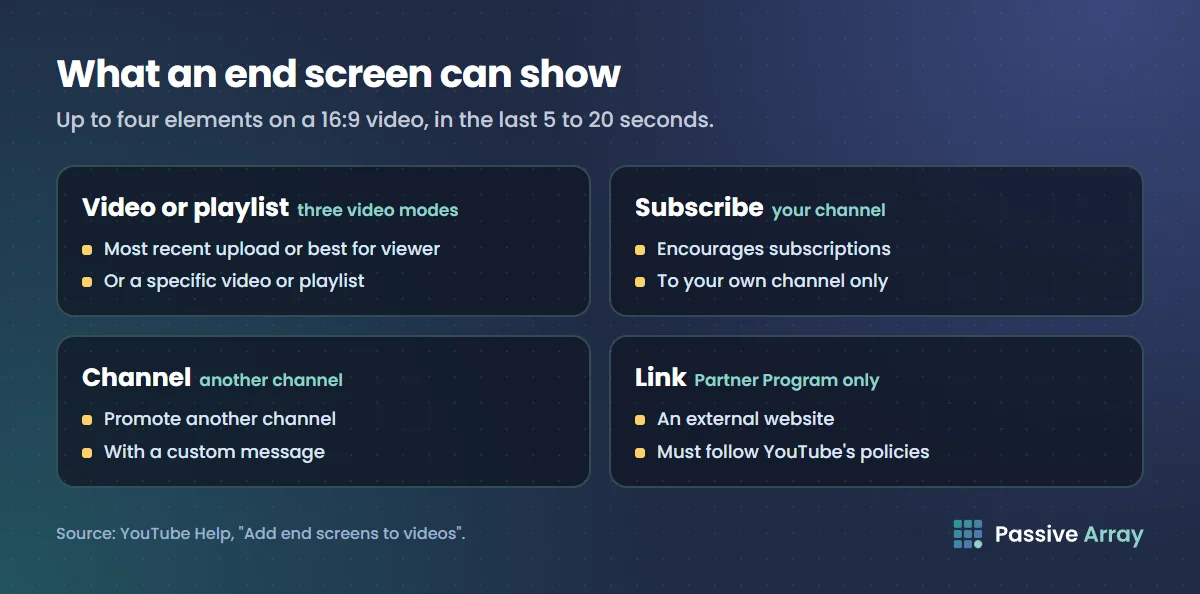
Video or playlist. A video element can show "your most recent upload", let YouTube "select a video from your channel to best suit the viewer", or show a specific video. YouTube says you can "Pick any video or playlist (public or unlisted) from your or any other channel", although the step list on the same page describes the playlist element as "Display a public YouTube playlist". If an unlisted playlist will not attach, that is the likely reason. Our view, not YouTube's: pick a specific video or playlist when there is an obvious next step, such as part 2 of a series, and avoid "most recent upload" on evergreen videos, because in a year your newest upload may be on a different topic.
Subscribe. "Encourage subscriptions to your channel." It promotes your own channel only. For a subscribe link outside the video, such as in a description or on a website, the YouTube subscribe link generator builds one that opens your channel with the subscribe prompt already showing.
Channel. "Promote another channel with a custom message." Useful for crediting a collaborator or pointing to a second channel. YouTube collaboration covers the collaboration side.
Link. "If you're in the YouTube Partner Program, you can link to an external website." YouTube warns that policy violations "can result in card or link removal, strikes, or termination of your Google Account." The same page says you can also "feature your own merchandise by tagging your product."
Templates. Not an element but a shortcut: "groupings of elements that you can customize to create an end screen." YouTube's Help page today describes templates but not an option to import an end screen from another video, so we have not described one.
How to add an end screen in YouTube Studio
These are YouTube Help's steps, written for YouTube Studio on a computer.
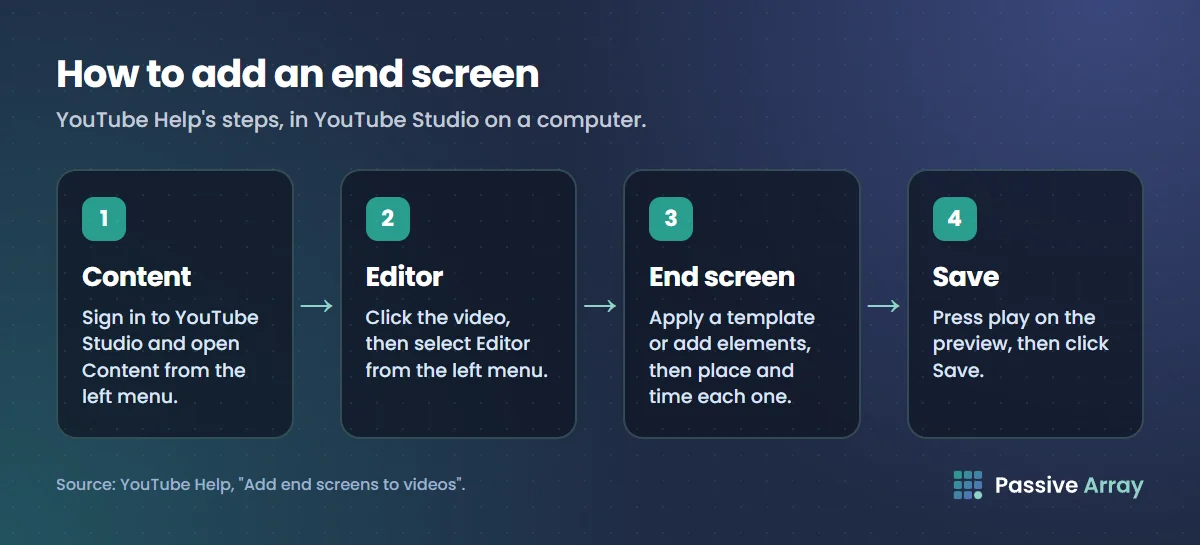
- Sign in to YouTube Studio and select Content from the left menu.
- Click the title or thumbnail of the video.
- From the left menu, select Editor.
- Select End screen, then apply a template or add an element: Video, Playlist, Subscribe, Channel or Link.
- Drag each element to place it, and drag the ends of its bar in the timeline to set when it starts and stops.
- Press play on the preview, then click Save.
YouTube also says "You can also add and customize end screens while uploading a video."
By default, "End screen elements will show at the same time", but you can time each one separately. For placement, you can "click the grid in the player to show a grid over the video preview" and turn on "Snap to grid" and "Snap to element". YouTube's best practices are to feature relevant elements, use calls to action, time elements to show at different times, and leave "enough space and time at the end of the video for an end screen."
Can you add an end screen on mobile?
YouTube Help gives only desktop steps. Its end screen page for Android and iPhone shows the same desktop route, with no YouTube Studio app instructions, so plan on using a computer.
Shorts
YouTube's end screen page does not mention Shorts. For Shorts, YouTube has a separate feature, a related video, which lets you "showcase your Videos, Shorts, and Live in the Shorts player". Viewers "will see a clickable link below your channel handle." You add it in Studio under Content by opening the Short and choosing a video from your channel. It needs advanced feature access, and the video "has to be public or unlisted." How to grow a YouTube channel with Shorts covers how Shorts feed long-form viewing.
YouTube end screen size and safe area
YouTube Help does not publish a template size, pixel dimensions for elements or a safe area for end screens. The only design numbers on the end screen page are the four-element limit and one tip: a custom image should be "at least 300 x 300 pixel width." Studio places elements on a grid, and YouTube says it may change how they show by device.
What we suggest instead. This is our advice, not a YouTube rule:
- Design the background at your video's resolution. For 16:9 at 1080p, YouTube Help's table gives 1920x1080.
- Place the elements in Studio first, screenshot the preview, and design your outro around the gaps, so the empty spaces line up with the elements.
- Keep the areas behind elements plain, with no text or faces under them.
- Say what to click and why. A specific reason to watch the next video beats a generic plug.
- Do not start the goodbye early. YouTube says to "consider the video's last 20 seconds when editing it." How to write a YouTube script covers a close that hands over to the next video.
A checklist before you click Save:
- The video is at least 25 seconds long and not set as made for kids.
- The end screen sits inside the last 20 seconds and lasts at least 5.
- At least one element is a specific next step that fits this video.
- No element overlaps another or covers text in your outro.
- You watched the whole end screen once in the preview.
End screen analytics
On desktop, YouTube Studio's analytics area is now called Insights. YouTube's getting-started page says: "We've updated the "Analytics" page to the "Insights" page on desktop." Some Help pages, including the end screen page, still say "Analytics", so you may see both names.
For one video: open Content in Studio, open the video, choose Insights, select the Engagement tab and scroll to the End screen element click rate card. YouTube says it shows "how often viewers clicked each end screen element in your video" and that "This report is only available after you've clicked into a specific video."
The end screen Help page also names two channel-level cards, "Top end screen element types" and "Top videos by end screen". The two Help pages do not fully agree on what appears at channel level, so if you do not see those cards, use the per-video report or Advanced Mode, which YouTube describes as "an expanded analytics report where you can get specific data, compare performance, and export data."
YouTube's Reporting API documentation defines the metrics behind the report:
| Metric | Definition |
|---|---|
| End screen element impressions | "One impression is logged for each end screen element that displays." |
| End screen element clicks | "The number of times that end screen elements were clicked." |
| End screen element click rate | "the ratio of end screen element clicks to end screen element impressions" |
So a four-element end screen logs four impressions each time it shows, and only viewers still watching see it at all: a low rate can be a retention problem. YouTube publishes no typical click rate, so compare your own videos with each other.
To see the views end screens sent, open the destination video's Reach tab. YouTube defines the End screens traffic source as "Traffic from creator end screens." YouTube Analytics explained covers the other tabs.
Why your end screen is not showing
All but the last point come from YouTube Help.
- The video is set as made for kids. "Even if you previously added an end screen to your video, viewers won't see end screens when your audience is set as made for kids."
- The video is under 25 seconds. You cannot add one at all.
- The viewer is somewhere end screens do not show: "On mobile web (exception: iPad mobile web)", "In the YouTube Music or YouTube Kids apps", "In Flash videos" or "In 360 videos."
- The viewer hid it. "Viewers also have the option to hide end screens."
- YouTube adapted it based on performance, viewer behaviour, device and context.
- A Link element disappeared. Links need Partner Program membership and a site that follows YouTube's policies.
- It was never saved. Our addition: reopen the Editor and check the end screen row is there.
End screens vs cards
Cards are the other built-in way to link from a video. YouTube Help says info cards "can feature a video, playlist, channel, or link."
| End screens | Cards | |
|---|---|---|
| When they show | Last 5 to 20 seconds | A teaser at the time you choose |
| How many | Up to 4 on a 16:9 video | "up to 5 cards to one video" |
| Types | Video, playlist, subscribe, channel, link | Video, playlist, channel, link |
| External links | Partner Program only | Partner Program only |
| Made for kids | Not available | Not available |
| Extra limits | Video must be 25 seconds or longer | Hidden if a Content ID claimant "has set up a campaign" |
Use cards mid-video and the end screen for the hand-off. Because card teasers are suppressed during the end screen, a card timed for the last 20 seconds may never be seen. End screens, cards and playlists all help a viewer move to your next video; how to get more views on YouTube covers when a weak thumbnail or slow opening is the bigger problem. And check the destination too: for long videos, the chapters checker tests a timestamp list against YouTube's chapter rules.
Sources
- YouTube Help: Add end screens to videos (time window, 25-second minimum, element types and limit, where they do not show, steps, templates, best practices, image tip, report cards)
- YouTube Help: Add info cards to videos (card types, 5-card limit, Content ID campaigns)
- YouTube Help: Watching "made for kids" content (cards and end screens unavailable)
- YouTube Help: Understand your YouTube engagement (End screen element click rate report)
- YouTube Help: Get started with YouTube Insights (Analytics renamed Insights, Advanced Mode)
- YouTube Help: Understand your YouTube video reach (End screens traffic source)
- YouTube Help: Add a related video to your YouTube Shorts (the Shorts equivalent)
- YouTube Help: Video resolution and aspect ratios (1920x1080 for 16:9 at 1080p)
- YouTube Reporting API: Metrics (end screen metric definitions)
Frequently asked questions
How do I add an end screen on YouTube?
In YouTube Studio on a computer, open Content, click the video, choose Editor, then select End screen. Apply a template or add elements, place and time them, preview and click Save. You can also add one during upload.
How long can a YouTube end screen be?
End screens run in the last 5 to 20 seconds of a video, and the video must be at least 25 seconds long. Each element can have its own start and end time inside that window.
How many elements can a YouTube end screen have?
Up to four on a video with the standard 16:9 aspect ratio, and YouTube says other aspect ratios may have a lower limit. The current Help page does not set a minimum or require a particular element type.
What size is a YouTube end screen template?
YouTube Help does not publish a template size or safe area. It recommends custom images of at least 300 x 300 pixels and gives 1920x1080 as the 1080p size for 16:9 video. Our suggestion is to place the elements in Studio first, then design your outro at your video's resolution around them.
Why is my YouTube end screen not showing?
Usually because the video is set as made for kids, it is under 25 seconds, or the viewer is on mobile web, YouTube Music, YouTube Kids, a Flash video or a 360 video. Viewers can also hide end screens, and YouTube says an end screen may not always show depending on performance, viewer behaviour, device and context.
What is the difference between end screens and cards on YouTube?
End screens appear only in the last 5 to 20 seconds, allow up to four elements and include a subscribe option. Cards appear at a time you choose as a small teaser, allow up to five per video and have no subscribe type. Neither works on made for kids videos.
Where do I see end screen analytics?
Open the video in YouTube Studio, choose Insights (still called Analytics on some Help pages), go to the Engagement tab and scroll to the End screen element click rate card. The destination video's Reach tab shows views from the End screens traffic source.