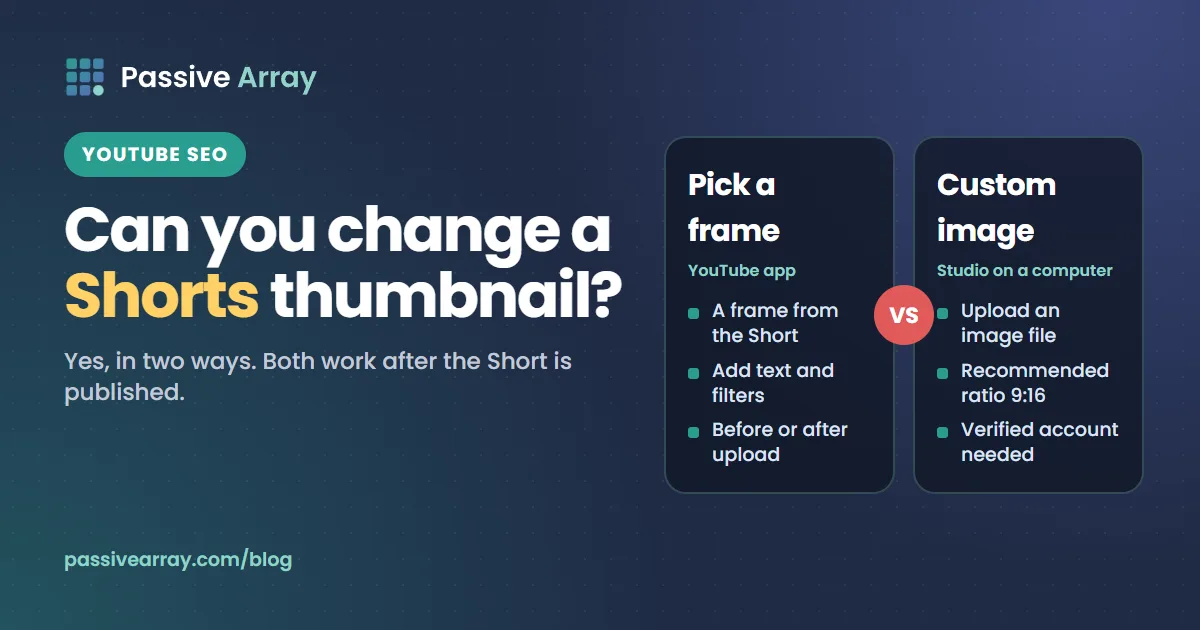
Yes, you can change a YouTube Shorts thumbnail, in two ways. In the YouTube app you can "choose a frame from your Short to be used as the thumbnail before and after you upload". In YouTube Studio on a computer you can upload a custom image: YouTube's Help Center says "Custom thumbnails for Shorts are currently only available to add in YouTube Studio on a computer", your account must be verified, and the recommended aspect ratio is 9:16. Both can be done after the Short is published.
This guide quotes what YouTube Help says today about each method, lists the official sizes, and looks at where a Shorts thumbnail is and is not seen, including the points where Help is silent. One note on our own tools first: the free YouTube thumbnail tester checks a thumbnail against the 16:9 rules for regular videos, so it is the right tool for your long-form videos, not for a vertical Shorts image.
The two ways to set a Shorts thumbnail
| Pick a frame | Upload a custom image | |
|---|---|---|
| Where | The YouTube app on a phone | YouTube Studio on a computer |
| What you get | A frame from the Short, with optional text and filters | Any image file from your device |
| Before publishing | Yes, on the final upload screen | Yes, when uploading on a computer |
| After publishing | Yes | Yes |
| Account requirement | None stated | "Your account must be verified" |
| Recommended shape | The frame is already the shape of the Short | 9:16 |
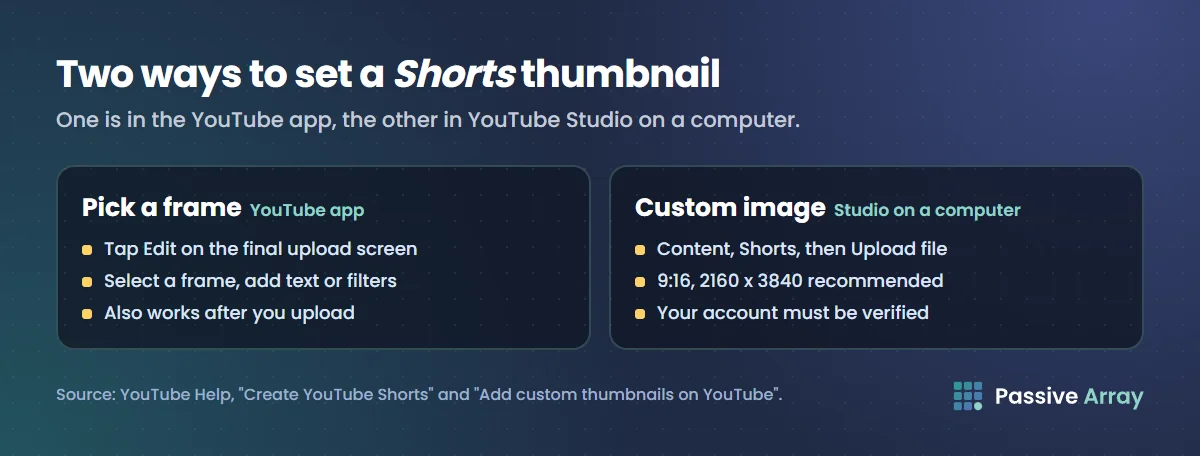
Everything in that table comes from two Help pages, "Create YouTube Shorts" and "Add custom thumbnails on YouTube". The sections below go through each.
Pick a frame in the YouTube app
YouTube's "Create YouTube Shorts" page has a section called "Select a thumbnail". It opens with: "You can choose a frame from your Short to be used as the thumbnail before and after you upload your Shorts."
Before you upload
These are the steps as Help gives them:
- Tap Create, then Short.
- Record your Short and enter the video details.
- On the final upload screen, tap Edit on the thumbnail of your video.
- "Select a frame to use as your thumbnail."
- Tap Done.
After you upload
- Sign in to the YouTube app.
- Go to your channel page, then Your videos.
- Tap More on the Short you want to edit, then Edit.
- Select a frame to use as your thumbnail.
- Tap Done.
Help adds a tip to both sets of steps: "You can add text and apply filters to your thumbnail. Once done with an edit, you cannot go back to previous edits to make any changes." So check the text before you tap Done.
Two limits are worth knowing. The page that holds these steps is published for Android phones and tablets and for iPhone and iPad, not for computers. And the same page notes that "the Shorts camera in the YouTube app is not available on tablets right now", so a phone is the safe choice.
Upload a custom Shorts thumbnail in YouTube Studio
The second method is on YouTube's "Add custom thumbnails on YouTube" page, which now covers Shorts as well as regular videos: "Custom video and Shorts thumbnails let your audience view a quick snapshot of your content."
The page carries this note at the top: "Custom thumbnails for Shorts are currently only available to add in YouTube Studio on a computer. Your account must be verified to use this feature."
The steps, from the computer version of the page:
- Sign in to YouTube Studio.
- From the left menu, select Content, then Shorts at the top.
- Go to the Short you want to edit and open it.
- Below "Thumbnail", click Upload file "to create a custom Shorts thumbnail from an image on your device."
- "For uploaded files, the recommended aspect ratio is 9:16."
- Click Save.
Help adds: "It may take time for your thumbnail changes to appear on YouTube."
Can you do it from a phone?
Not the custom upload. The Android and iPhone versions of the same page both say: "Custom Shorts thumbnails are currently only available to add in YouTube Studio on a computer. You can add a custom thumbnail to a Short when uploading it on a computer or after it is uploaded."
That sentence also answers the timing question. A custom image can be added at upload or later, as long as you do it on a computer.
"Verified" here means phone verification. YouTube's verification page says "you'll be asked to enter a phone number", and that once verified you can "add custom thumbnails".
Two Help pages that seem to disagree
If you read both pages, you will find a sentence on the "Create YouTube Shorts" page that looks like it rules out the second method: "Keep in mind that you can only edit your thumbnail from the YouTube app and not from Studio."
The custom thumbnails page says the opposite for uploaded images: they are "only available to add in YouTube Studio on a computer."
Our reading, not a YouTube ruling: the two sentences describe two different things. Choosing a frame from the video, with text and filters, is the app feature. Uploading an image file is the Studio feature. If the upload option is missing from your Studio, check that the channel is verified and that you are on a computer. Help gives no date for when custom Shorts thumbnails were added, so we do not state one.
Shorts thumbnail size and aspect ratio
YouTube's custom thumbnail best practices give these figures for Shorts. We have put the regular-video figures beside them, because the two are easy to mix up.
| Setting | Shorts thumbnail | Regular video thumbnail |
|---|---|---|
| Recommended aspect ratio | 9:16 | 16:9 |
| Recommended resolution | 2160 x 3840 pixels | 3840 x 2160 pixels |
| Minimum | A height of 640 pixels | A width of 640 pixels |
| Formats | "Image formats such as JPG or PNG" | The same |
| File size limit on desktop | 50MB | 50MB |
The wording on the page is that custom thumbnails should "have a resolution of 3840 x 2160 pixels for videos and 2160 x 3840 for Shorts, with a minimum width of 640 pixels for videos and a minimum height of 640 pixels for Shorts." For file size, Help lists "Desktop: 50MB for video, Shorts, and podcast thumbnails." It also lists a mobile limit of 2 MB for video thumbnails, but since custom Shorts thumbnails can only be added on a computer, the desktop figure is the one that applies to Shorts.
YouTube's general advice applies to both: "Your custom thumbnail image should be as large as possible."
A Short itself can be square or vertical, and Help says you can upload Shorts "with a maximum resolution of 1080p." The only shape Help recommends for a Shorts thumbnail image is 9:16. It does not say what happens if you upload a different shape for a Short, so we do not guess. How long can a YouTube Short be covers the length and aspect-ratio rules that decide whether an upload is a Short at all, and YouTube thumbnail size covers regular videos.
The 4:5 note on vertical videos
The same best-practices section has a note that is easy to misread: "Vertical videos with 16:9 custom thumbnails will be replaced by an auto-generated 4:5 thumbnail on the home, explore, and subscription pages. Your custom thumbnail will still appear on the watch feed, watch history, and non-mobile platforms."
The note is about "vertical videos" with a 16:9 thumbnail. Help does not say whether it applies to Shorts. The lesson is the same either way: give a vertical video a vertical thumbnail, and keep the subject and any text near the middle.
Where a Shorts thumbnail is seen
This is the part that decides whether the thumbnail is worth your time, and Help is only partly explicit about it.
What Help says
YouTube's Shorts guide lists where viewers find Shorts. First, the feed: viewers tap Shorts at the bottom of the app, and "from the player, they can scroll to watch a never-ending stream of videos in the Shorts Feed." Then it lists the other places:
- "In search results across YouTube, including on most smart TVs, game consoles, and other streaming devices."
- "On the YouTube homepage."
- "Featured on your channel homepage."
- "By checking their Subscriptions."
- "In their notifications."
What Help does not say
Help does not state which of those places show your chosen thumbnail and which show something else. The description of the feed is the clearest: viewers scroll from one Short to the next in the player. On the other surfaces, a viewer picks a Short from a set of results or a shelf before it opens.
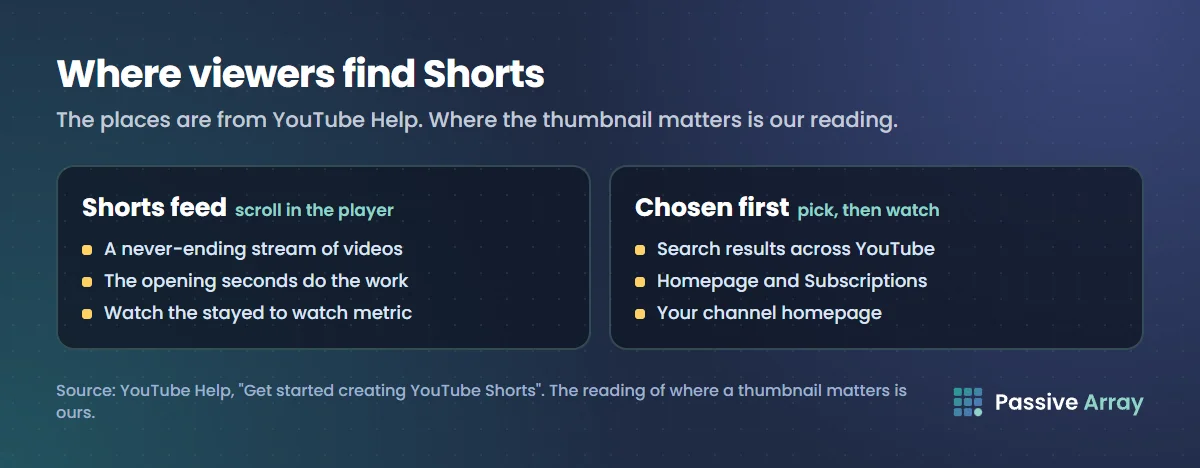
Our reading, not a YouTube statement: the thumbnail matters most where a viewer has to choose, which is search, the homepage, your channel page and Subscriptions. It matters least in the swipe feed, where the opening of the video has to do the work. YouTube Shorts SEO covers how Shorts are found through search.
Check your own traffic first
You do not have to take anyone's word for it. YouTube Analytics has a report called "How viewers find your Shorts", which Help says shows "how your viewers found your Shorts within Shorts feed, YouTube search, channel pages, browse features, external, and others."
Open it before you spend an hour on thumbnails:
- If nearly all your Shorts views come from the Shorts feed, the first seconds matter far more than the thumbnail. The metric to watch is "stayed to watch", which YouTube defines as "the percentage of times viewers stayed to watch past the initial seconds of a Short."
- If a real share comes from YouTube search, channel pages or browse features, a clear thumbnail is worth setting on every Short.
Does the Shorts thumbnail matter?
A fair answer has two halves.
It matters less than on long-form. For regular videos, YouTube offers A/B testing of thumbnails. For Shorts, Help says plainly: "A/B testing is not available for Shorts." The page that describes the Shorts section of the Content tab lists a key metrics card with "views, likes, and subscribers", and an engagement report built on stayed to watch, not on thumbnail clicks. Our guide to click-through rate on YouTube explains how thumbnail impressions work on regular videos.
It still matters in two places. This is our reading of the surfaces Help lists:
- Your channel page. A visitor deciding whether to subscribe sees your Shorts side by side. Readable, consistent thumbnails make the channel look deliberate.
- Search. A frame that shows the result, or a few words naming the topic, tells a searcher they found the right video.
Help gives no figure for how much a Shorts thumbnail changes views, so we do not give one.
How to choose a good Shorts thumbnail
These are practical suggestions, built on the official options above.
- Decide at upload. Both methods work after publishing, but Help warns that changes may take time to appear.
- Pick a frame that shows the payoff. The finished dish, the after shot, the final score. The first frame is often a blur.
- Add a few words if the frame needs them. The app lets you add text, but you cannot go back to earlier edits once done.
- Keep the subject and text near the middle, in case a surface shows a tighter crop.
- For a custom image, build it at 9:16, up to the recommended 2160 x 3840, and save it as a JPG or PNG.
- Match the title. The title analyzer scores a title on length, keyword position and click appeal. Help gives Shorts titles a maximum of 100 characters.
- Do not mislead. A thumbnail that promises something the Short does not show loses the viewer in the first seconds.
YouTube thumbnail examples has seven patterns that work on regular videos, and how to grow a YouTube channel with Shorts covers the opening seconds, which matter more than the thumbnail in the feed.
A quick checklist
- Thumbnail chosen on purpose, not left on the default frame
- The subject is clear at small size
- Text is short, readable and near the middle
- A custom image is 9:16, JPG or PNG, and at least 640 pixels high
- The thumbnail and title describe the same thing
- Nothing in it breaks the thumbnail policies below
Rules and limits on custom thumbnails
The custom thumbnails page applies the same rules to Shorts as to regular videos.
Policies. "All custom thumbnail images must follow our Community Guidelines." Help lists nudity or sexually provocative content, hate speech, violence, and harmful or dangerous content as reasons a thumbnail may be rejected and a strike issued. "Repeat offenses may lead to the removal of your custom thumbnail privileges for 30 days or even account termination."
Daily limit. "There's a limit to how many custom thumbnails a channel can upload each day." If you see "Daily custom thumbnail limit reached", Help says to try again in 24 hours. It does not publish the number.
Sources
- YouTube Help: Add custom thumbnails on YouTube (custom Shorts thumbnails in YouTube Studio on a computer, verification, 9:16, resolution, file size, policies, daily limit; computer, Android and iPhone versions read)
- YouTube Help: Create YouTube Shorts ("Select a thumbnail" steps in the YouTube app, before and after upload; the tablet note)
- YouTube Help: Get started creating YouTube Shorts (where viewers find Shorts, 1080p maximum, 100-character title)
- YouTube Help: Verify your YouTube account (phone verification unlocks custom thumbnails)
- YouTube Help: A/B test titles and thumbnails ("A/B testing is not available for Shorts")
- YouTube Help: Understand your YouTube content performance ("How viewers find your Shorts", stayed to watch, the Shorts key metrics card)
All pages were read on 15 November 2026.
Frequently asked questions
How do I change a YouTube Shorts thumbnail?
In the YouTube app, go to your channel page, open Your videos, tap More on the Short, then Edit, select a frame and tap Done. To use your own image, open the Short in YouTube Studio on a computer and click Upload file below Thumbnail. Both work after the Short is published.
What is the YouTube Shorts thumbnail size?
YouTube recommends a 9:16 aspect ratio for a custom Shorts thumbnail, a resolution of 2160 x 3840 pixels and a minimum height of 640 pixels, in a format such as JPG or PNG. The desktop file size limit is 50MB.
Can I upload a custom thumbnail for YouTube Shorts on my phone?
No. YouTube Help says custom thumbnails for Shorts are currently only available to add in YouTube Studio on a computer, and the account must be verified. On a phone you can choose a frame from the Short in the YouTube app and add text or filters to it.
Does the YouTube Shorts thumbnail matter?
Less than on a regular video, but it is not irrelevant. In the Shorts feed viewers scroll from one playing Short to the next, so the opening seconds do most of the work. A thumbnail can still help where viewers choose a Short before it opens, such as search and your channel page. YouTube publishes no figure for the effect.
Can I A/B test a YouTube Shorts thumbnail?
No. YouTube's help page on testing titles and thumbnails says A/B testing is not available for Shorts. To compare Shorts, use the stayed to watch metric and the traffic source report in YouTube Analytics.