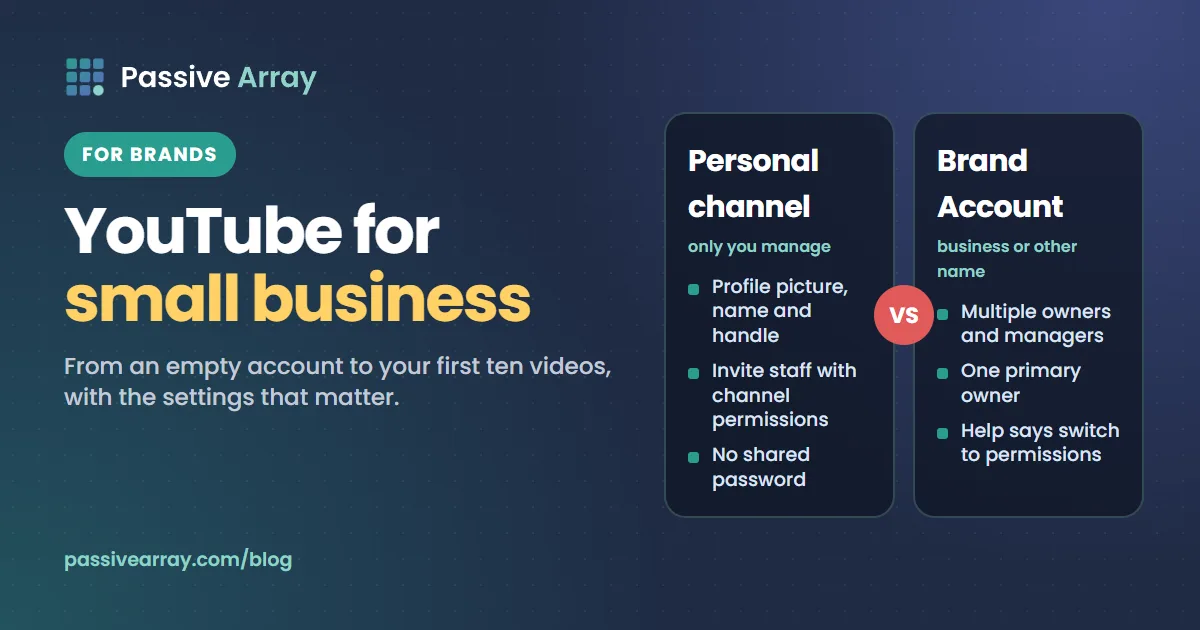
To use YouTube for a small business, create a channel under the business name, give staff access with channel permissions instead of a shared password, verify the channel by phone to unlock custom thumbnails and videos longer than 15 minutes, and then publish videos that answer the questions customers already ask you. A channel is free. YouTube Help describes two kinds: a personal channel that "only you manage", and a channel with a business or other name, which uses a Brand Account that "can have multiple managers or owners." The setup takes an afternoon. The work is in the first ten videos.
This guide goes from an empty account to those ten videos: the account choice, the settings worth doing on day one, which videos suit a business, basic search optimisation, putting videos on your website and Google Business Profile, and what to measure. Every platform rule here was read on its official Help page on 15 November 2026. For topics, the free YouTube keyword generator turns one word about your trade into long-tail phrases and questions to check in YouTube search.
Step 1: choose the account type
Personal channel or Brand Account
YouTube Help's "Create a YouTube channel" page gives two routes:
- A personal channel, described as a channel only you manage. You create it from Settings, under "Add or manage channel(s)", with a profile picture, a name and a handle.
- A channel with a business or other name. This creates a Brand Account. Help says you and others "can jointly manage a Brand Account through your own Google Accounts", so "You won't need a separate username or password." A Brand Account "can have multiple owners and managers", and "must have one primary owner."
Either can carry a business name. The real question is how other people will get access, and for that YouTube now points to a newer system.
Give access with channel permissions
Channel permissions let you invite people to the channel by email with a set role. Help calls this "safer than sharing your password or other sensitive sign in details", and tells Brand Account users to "switch to channel permissions".
| Role | What it can do, per YouTube Help |
|---|---|
| Owner | Everything, including deleting the channel and managing permissions |
| Manager | View all channel data, manage permissions, edit details, publish and delete content. Cannot delete the channel |
| Editor | Edit everything, upload and publish. Cannot manage permissions or delete published content |
| Editor (Limited) | The same as Editor, without access to revenue data |
| Viewer | View channel details and revenue data, with no editing |
Help also lists a Subtitle Editor role and a Viewer (Limited) role. To invite someone from the YouTube Studio app: tap your profile picture, then Settings, then Permissions, tap Invite, enter their email address and choose a role. Help says an invitation "expires after 30 days."
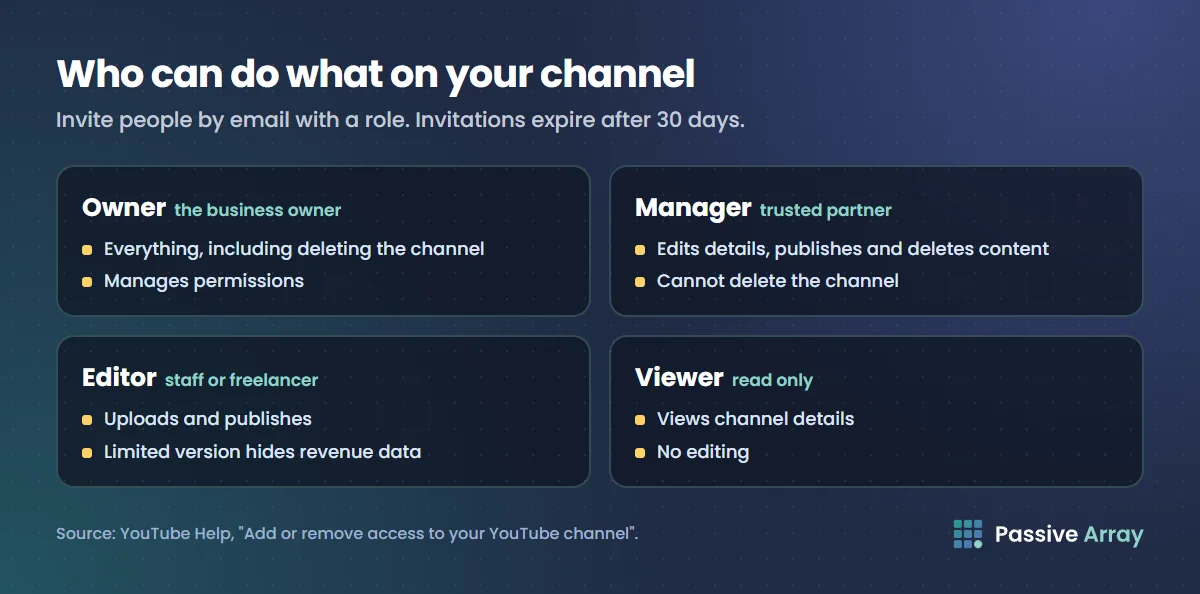
Our suggestion, not a YouTube rule: the business owner should be the Owner, on a Google Account the business controls. Give staff or a freelancer the Editor role, and remove access when someone leaves.
Step 2: set up the channel basics
All of this is in YouTube Studio under Customization, then Profile.
Name and handle
Use the name customers know you by. Help says "You can change your channel name twice within a 14-day period", so it is not permanent, but pick one and keep it.
The handle is the @name. Help describes handles as "short and unique channel identifiers", and the handle becomes your channel's address in the form youtube.com/@yourhandle. The rules: between 3 and 30 characters in most scripts, letters and numbers, with underscores, hyphens and periods allowed except at the start or end. Handles are not case-sensitive, and you can change yours twice within a 14-day period. If the name is not settled yet, YouTube channel name ideas has a method for choosing one.
Profile picture, banner and watermark
These specs are from YouTube Help's "Manage your channel branding" page.
| Image | Help's guideline |
|---|---|
| Profile picture | JPG, GIF, BMP or PNG, not animated; no larger than 15 MB; renders at 98 x 98 pixels |
| Banner | Minimum 2048 x 1152 pixels at 16:9; 6 MB or smaller |
| Banner safe area | 1235 x 338 pixels for text and logos, at the minimum dimension |
| Video watermark | Square, at least 150 x 150 pixels, under 1 MB |
Use your logo as the profile picture, and keep the banner's text inside the safe area.
Description, links and contact email
- Description. Help says "Your description is accessible in the channel header." Say what the business does, who it serves and where, in plain words.
- Links. "You can showcase up to 14 links on your channel Home tab", and "Your first link will be prominently displayed in the profile section near the subscribe button". Make the first link the page you most want visitors to reach: your booking page, shop or contact form.
- Contact info. Add an email address here. Help describes it as the way others can reach you with business questions.
Step 3: verify the channel
Verification here means confirming a phone number, not the grey tick. Go to youtube.com/verify. Help says "you'll be asked to enter a phone number", and YouTube sends a code by text or voice call. A phone number can be linked to no more than 2 channels per year.
Help lists what a verified channel can do:
- Upload videos longer than 15 minutes
- Add custom thumbnails
- Live stream
- Appeal copyright claims
A business needs at least the second one. YouTube thumbnail size has the dimensions.
There is a further tier. Help's feature access page says advanced features go to channels with "sufficient channel history", or sooner to those who verify their identity with a valid ID or video. Its list of advanced features includes clickable links in video descriptions and pinning comments. If the links in your descriptions are not clickable on a new channel, this is the setting to check.
Step 4: decide what to film
A business channel needs to answer the questions people ask before they buy. The four types below are our advice, not a YouTube rule.
How-to videos
Show how to do something related to what you sell. A plumber shows how to stop a dripping tap. A bike shop shows how to fix a puncture.
Product and service demonstrations
Show the product being used, or the service being carried out, from start to finish. Include anything a photo cannot show.
Frequently asked questions
Take the question you answer most often by phone or email and answer it on camera. One question per video. Put the question in the title in the customer's own words.
Customer questions and stories
A real problem a customer brought you, and how it was solved. Get the customer's permission before you film or name them.
Your first ten videos
Here is one plan.
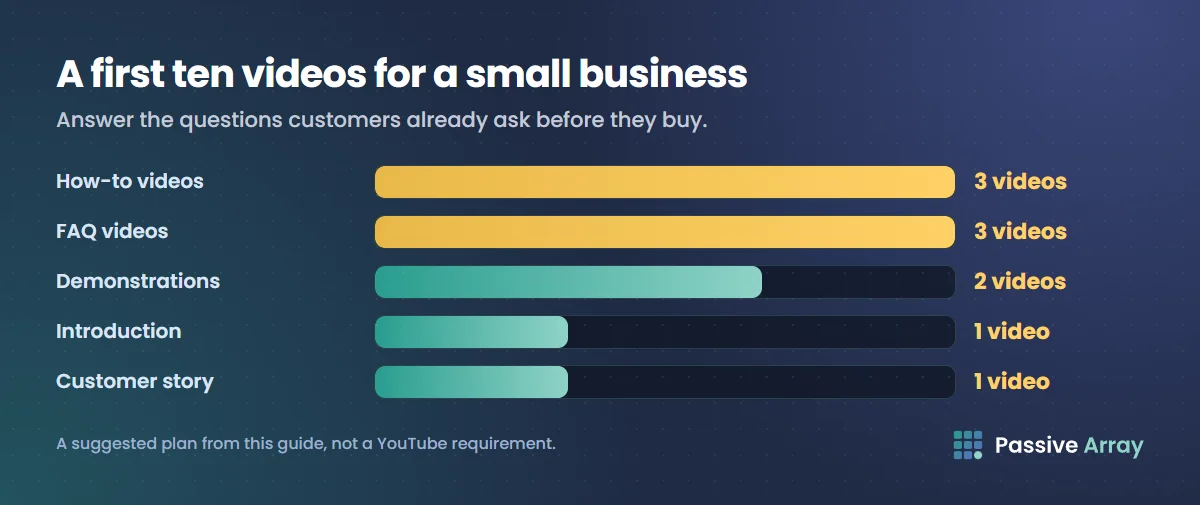
- Who we are and who we help. Short. This becomes the video you feature at the top of the channel.
- How-to: the most common small problem in your trade.
- FAQ: the price question. "How much does [service] cost?" Give honest ranges and what changes them.
- Demo: your main product or service, start to finish.
- How-to: a second common problem.
- FAQ: the comparison question. "[Option A] or [option B]?"
- Demo: a second product, or the same one in a different use.
- FAQ: the timing question. "How long does [service] take?"
- How-to: a seasonal topic that is coming up in the next two months.
- A customer story, with permission.
To fill in the blanks, list the last twenty questions customers asked. Then run your main product or service through the keyword generator, which groups phrases into how-tos, questions and comparisons. It does not show search volume, so check each phrase by typing it into YouTube. The video ideas generator takes what your channel is about and who watches it and returns twelve specific ideas, each with a hook and a format. YouTube video ideas for beginners has six more free ways to find topics.
Plan each video before you film: how to write a YouTube script shows a simple structure.
Step 5: basic search optimisation
We have two full guides to search, so this is only the short version:
- Title. Use the phrase a customer would type, near the front. The title analyzer scores a title out of 100 on length, keyword position and click appeal, and shows each check separately.
- Description. Two or three sentences that say what the video covers, then your link and contact details. YouTube description templates has layouts to copy.
- Say the answer early. Give the answer first, then the detail.
- Location. If you serve one area, say the town or region in the video and the description.
How YouTube SEO works explains what YouTube search ranks on and gives a step-by-step process. How to rank YouTube videos on Google covers getting a video into Google's results.
Step 6: put the videos where customers already are
On your website
YouTube Help gives the embed steps: open the video on a computer, click Share, then Embed, copy the HTML code and paste it into your website's HTML. Useful details from the same page:
- Privacy-enhanced mode. Change the domain in the embed code from youtube.com to youtube-nocookie.com.
- Autoplay. Help says autoplayed embeds do not count as views.
Put each video on the page it belongs to, such as the demo on the product page.
On your Google Business Profile
Here is exactly what Google's Business Profile Help documents.
You can upload video files to the profile. They are separate uploads, not YouTube embeds. The requirements are:
- Duration: "Up to 30 seconds long"
- File size: "Up to 75 MB"
- Resolution: "720p or higher"
To add one, search for your business on Google Search or Maps while signed in, click Photos, then Add photos, and select the video. Help says "Your photos and videos show up on Google only after you verify your Business Profile", and that they can take up to 24 to 48 hours to appear. So a 30-second cut of your demo video works here. A ten-minute how-to does not.
You can add your YouTube channel as a social profile. In the Business Profile, go to Edit profile, then Contact, and next to "Social profiles" choose YouTube and paste your channel address. Help accepts the youtube.com/@handle format and says "You can add one link per social media platform." It also says social media links are "currently available in select regions", so the option may not be on your profile.
We could not find an official page saying that a YouTube video can be embedded in a Business Profile, or that a linked channel changes how the profile ranks, so this guide makes neither claim.
Step 7: measure results
On a computer, YouTube has renamed the Analytics page. Help says: "We've updated the 'Analytics' page to the 'Insights' page on desktop." Open YouTube Studio and click it in the left menu. The tabs a business needs:
| Tab | What Help says it shows | What to look for |
|---|---|---|
| Overview | "a summary of how your channel and videos are performing" | Which of your ten videos is ahead |
| Reach | How your audience is discovering you: impressions, impressions click-through rate, views and unique viewers | Whether the title and thumbnail earn clicks |
| Engagement | "how long your audience is watching your videos": watch time and average view duration | Where people stop watching |
| Audience | "who is watching your videos", including new, casual and regular viewers | Whether new viewers come back |
| Trends | "what your audience and viewers across YouTube are searching for" | Topics for the next videos |
YouTube Analytics explained goes through the reports one by one.
Track these as well, outside YouTube:
- Clicks on your links. Use a separate tagged link in your channel links and descriptions so your website analytics can tell YouTube visitors apart.
- Enquiries that mention a video. Add "How did you hear about us?" to your contact form and ask on the phone.
Review after ten videos. Make more of the type that brought enquiries, not only the type that got views.
When to consider ads or creators
Two paid routes are worth a look once you have a video worth showing.
Ads. YouTube Studio has a Promotions tab under Content, where you can promote one of your own videos with a goal, an audience, a budget and an end date. It needs a linked Google Ads account. The video must be public or unlisted and at least 10 seconds long. Help notes that "Subscribers and watch-time earned through Promote don't contribute towards YouTube Partner Program eligibility". YouTube ad formats and specs covers every format and what to upload.
Creators. A local or niche creator can show your product to an audience that already trusts them. How influencer marketing works explains the deal types, pricing and disclosure.
Do neither before the channel has a few useful videos and a working link to your site. For the longer game of building subscribers, see how to grow a YouTube channel.
Sources
- YouTube Help: Create a YouTube channel (personal channel, channel with a business or other name)
- YouTube Help: Manage your Brand Account (joint management, owners and managers, primary owner)
- YouTube Help: Add or remove access to your YouTube channel with channel permissions (roles, invitations)
- YouTube Help: Learn about YouTube handles (handle rules)
- YouTube Help: Manage your YouTube channel's profile (name and handle changes, description, links, contact info)
- YouTube Help: Manage your channel branding (profile picture, banner, watermark)
- YouTube Help: Verify your YouTube account (phone verification and what it unlocks)
- YouTube Help: Learn about feature access for YouTube Creators (advanced features)
- YouTube Help: Embed videos & playlists (embed steps and options)
- Google Business Profile Help: Manage your Business Profile photos & videos (video requirements, verification, timing)
- Google Business Profile Help: Manage your social media links (YouTube as a social profile, regions)
- YouTube Help: Get started with YouTube Insights (the rename and the tabs)
- YouTube Help: Create & manage promotions on YouTube (Promote)
Frequently asked questions
How do I use YouTube for my business?
Create a channel under the business name, verify it by phone, and publish videos that answer the questions customers ask before buying: how-tos, product demonstrations and frequently asked questions. Put a link to your website first in the channel links and in every description, embed the videos on your site, and track the enquiries they bring.
Do I need a Brand Account for a business YouTube channel?
Not necessarily. A Brand Account lets several people own or manage a channel through their own Google Accounts. But YouTube Help now tells Brand Account users to switch to channel permissions, which let you invite people by email with a specific role. Either way, do not share a password.
What kind of videos should a small business post on YouTube?
Videos that answer real customer questions. How-to videos on problems related to what you sell, demonstrations of your product or service, one-question FAQ videos, and customer stories filmed with permission.
How do I verify a business YouTube channel?
Go to youtube.com/verify, enter a phone number and type in the code YouTube sends by text or voice call. YouTube Help says this unlocks videos longer than 15 minutes, custom thumbnails, live streaming and copyright claim appeals.
Can I add YouTube videos to my Google Business Profile?
You can upload video files directly to the profile, and Google's Help says they must be up to 30 seconds long, up to 75 MB and 720p or higher. You can also add your YouTube channel as a social profile link, although Google says that option is available in select regions. Google's Help does not describe embedding a YouTube video in the profile.